The admin monitor allows you to get an overview over the system settings of JobRouter at a glance or to recognize errors. It shows you e.g. not running services, erroneous e-mails or DocuWare jobs in error state, giving you a quick overview over all system relevant information of JobRouter. Additionally, you can open the listed categories and tools directly in the Admin Monitor to track or fix the errors.
You can open the admin monitor via the Admin Tools. All users with the Configuration right are allowed to open the admin monitor. In the JobRouter navigation menu, click on Admin Monitor. The following overview appears.
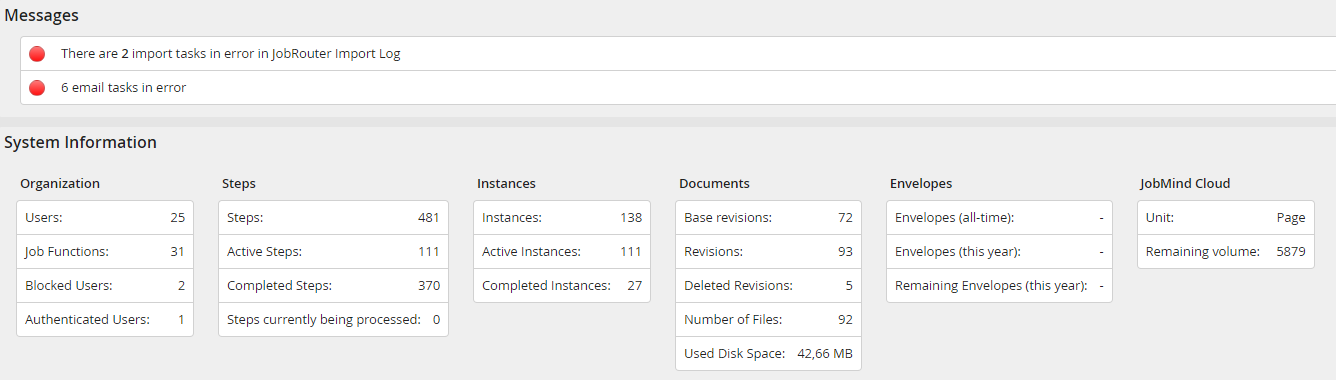
Admin Monitor
Look for errors in the Messages section in the upper portion of the window. A step that encounters an error will generate a message to that effect which will be visible here. Job Functions that are defined but have no members will likewise each generate an error message. To monitor or correct an error, just click the corresponding line in the admin monitor, and you will be taken directly to the appropriate area.
The lower portion of the admin monitor shows you general system information. These are divided in organization, steps, instances and documents. Organization displays e.g. how many users and how many Job Functions exist in JobRouter. The Steps category displays how many steps exist in the system and how many of them are active or processed. Instances displays the same information on the instances in the system.
Lizenzabhängige Informationen
If the JobArchive module is licensed, the column Documents will display information on the archived documents, such as their number or used disk space.
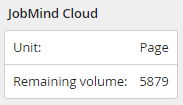
Ist das Modul JobMind Cloud lizenziert, wird das verfügbaren Volumen an Seiten bzw. Dokumenten angezeigt: