After performing or importing an analysis, all information contained within will be displayed in a respective overview in sorted way. The following tabs are available in the overview:
General
The General tab display general information on the analyzed JobRouter system.
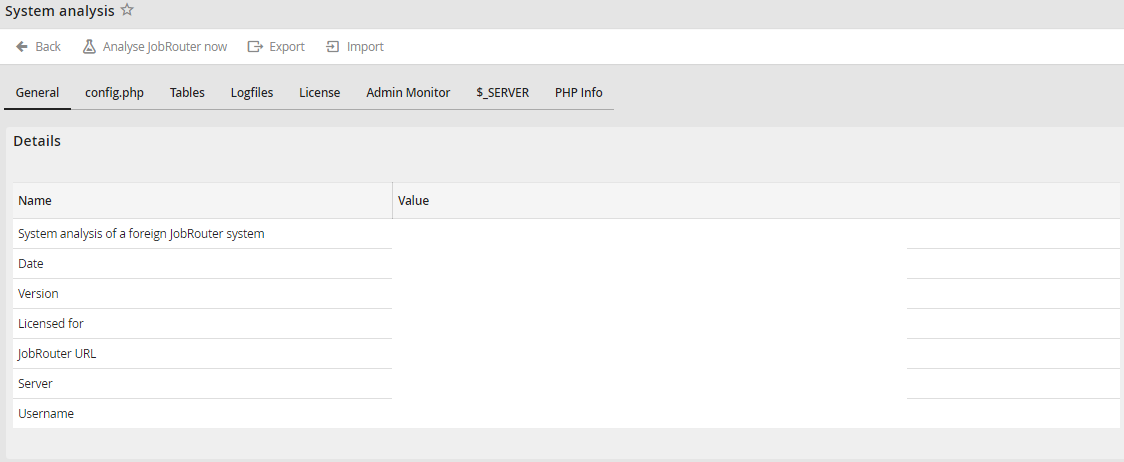
Analysis result - General tab
config.php
The config.php displays the content of the config.php configuration file of the analyzed JobRouter system.
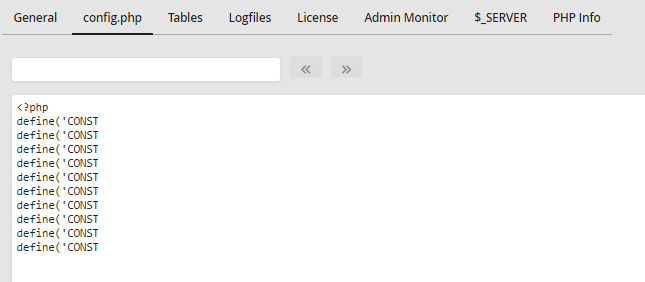
Analysis result - config.php tab
Tables
The Tables tab displays SQL tables important to the analysis of the analyzed JobRouter system. To reduce the amount of data, only part of the real data of the tables is provided. A selection on top can be used to switch between the tables.
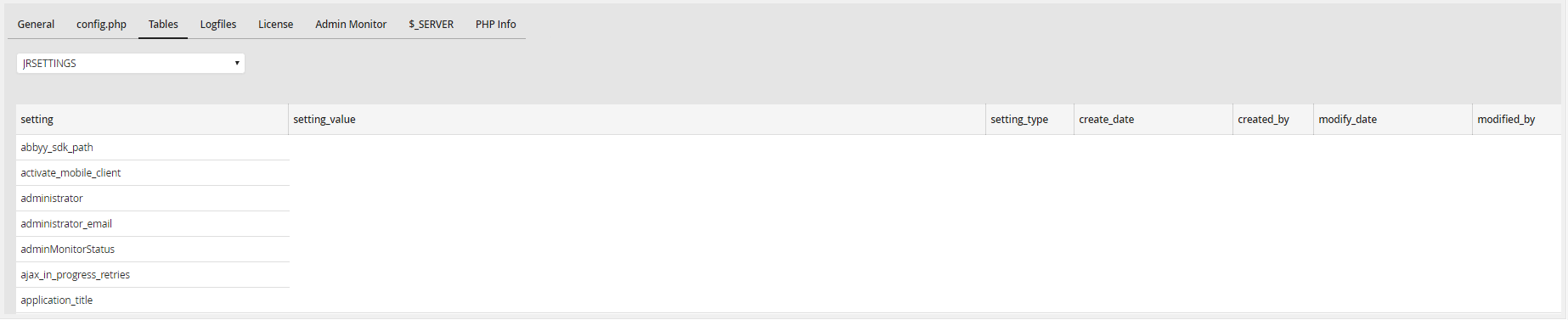
Analysis result - Tables tab
Log files
The Log files tab displays log files important to the analysis of the analyzed JobRouter system. To reduce the amount of data, only part of the real data of the log files is provided. A selection on top can be used to switch between the files.
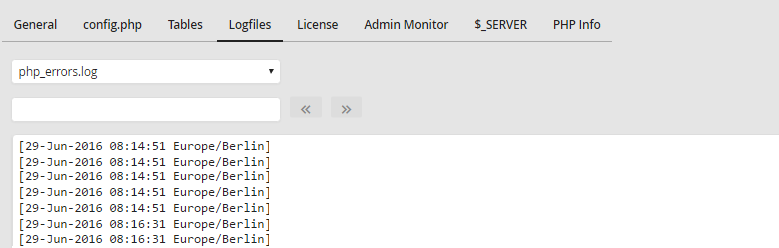
Analysis result - Logfiles
License
The license file can be viewed in the License tab. For data protection reasons, the license key is not displayed.
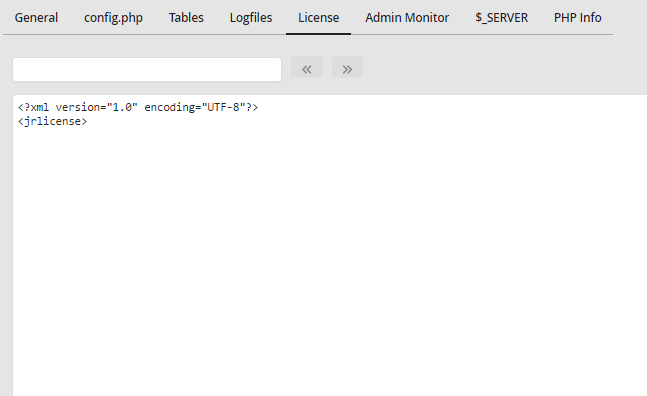
Analysis result - License tab
Admin Monitor
The Admin Monitor tab displays the key facts and data of the admin monitor.
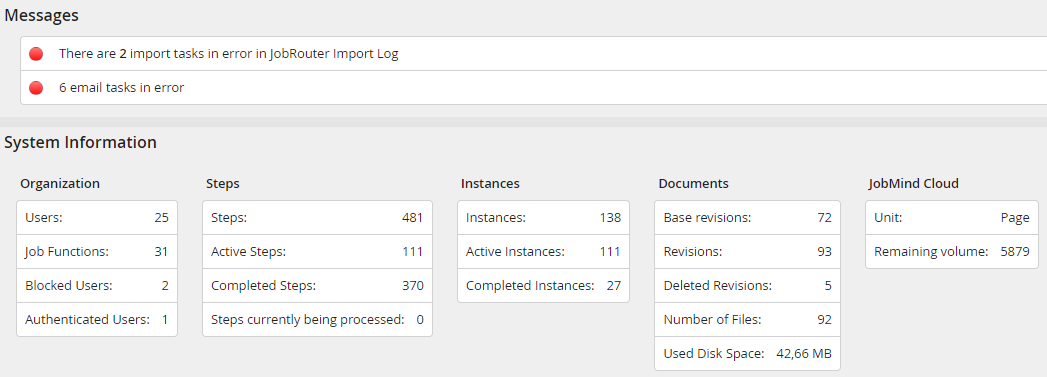
Analysis result - Admin Monitor tab
$_SERVER
The $_SERVER displays the contents of the server variable of PHP.
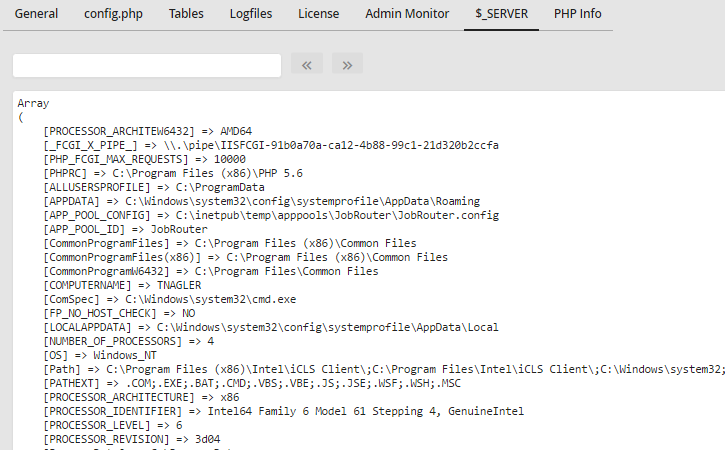
Analysis result - $_SERVER tab
PHP Info
The PHP Info tab displays the output of the phpinfo() PHP function.
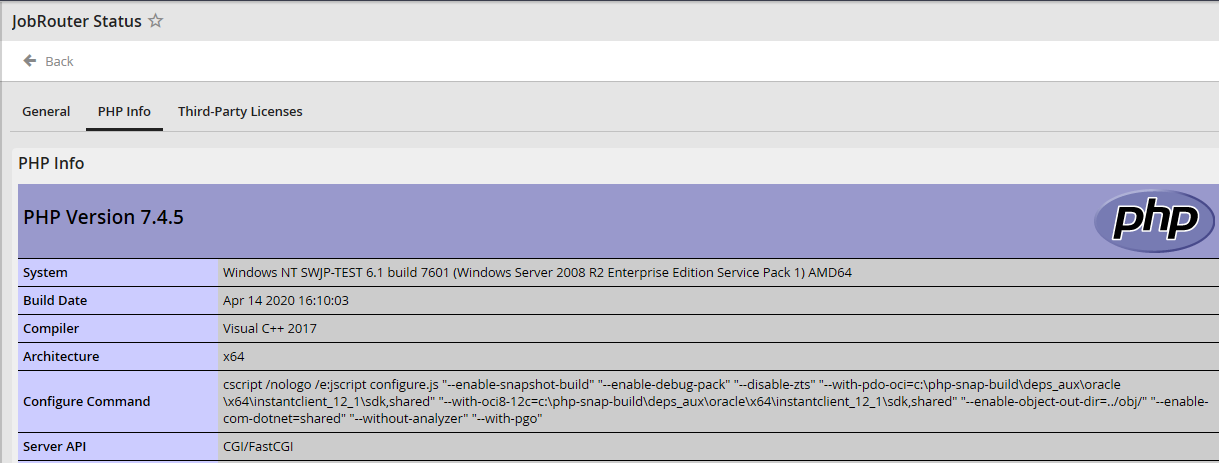
Analysis result - PHP Info tab
Please note: An input field can be found above text fields that can be used to search through the content. Found matches will be marked red and the buttons can be used to switch between the found matches.
