A new archive view can be created by clicking on New in the action bar of the Manage archive views mask. If you want to edit an already existing Archive View, click on its name. In both cases, you will see the New archive view mask.
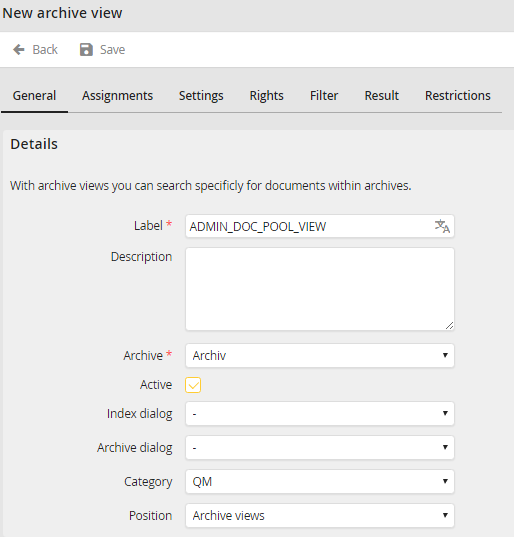
Edit Archive View - General tab
You may configure the following settings.
Details |
Definition |
|---|---|
Label |
Enter a label for the archive view here. You can add translations in other languages (only with licensed module JobMultilingual). The archive view can be found under this name. |
Description |
Enter a description of the archive view. This description is only visible here. |
Archive |
Select the archive the archive view is using. |
Index Dialog |
Select an index dialog belonging to the archive you want to display in the view. |
Archive dialog |
Select an archive dialog belonging to the archive you want to display in the view. If no archive dialog is selected, the Archive document button in the action bar of the archive view will not be displayed, regardless of granted rights. |
Edit index fields |
Select this checkbox to activate the editing of index data. Fields set as write protected in the index dialog are excluded. |
Category |
Select a category you want to use to display the archive view. If no category is set here, the archive view will use the category set in the archive. |
Position |
Select the position of the Archive View in the navigation menu. •Archive views: As sub entry of the respective category. •Navigation menu: Displayed on top level of the navigation menu. |
Active |
Select this checkbox to activate the Archive View. It will be shown in the navigation menu for all members of the assigned Job Functions. |
Click Save in the action bar to save your settings.
