Add a new connection by clicking New in the action bar. Modify an existing connection by clicking on the corresponding name. In both cases the following Edit Global Connection dialog window will be displayed.
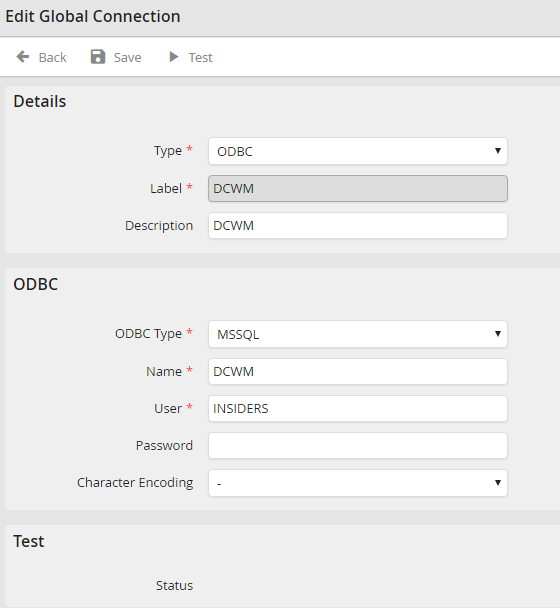
Adding/Editing a Global Connection
In the Details section, choose the desired database type in the drop-down list Type. Then assign a name to your connection in the Label field.
Please note: Once you have saved a label for a connection, it can no longer be changed.
Enter a description for your database connection in the Description field. Check the Active box to activate it. The next section of the dialog window has fields that will vary depending on database type. You may configure the following parameters for the various database types.
MySQL / MariaDB
Connection to a MySQL respectively MariaDB Server.
Property |
Definition |
|---|---|
Host |
Enter the server name or its IP address. |
Users |
Enter a username. |
Password |
Provide the password for that username. |
Database |
Give the name of the database used. |
Port |
Enter the port number, under which the server is available. |
Character encoding |
Choose the character encoding here in case the character set for the external database varies from the one used for the JobRouter database. |
Oracle
Connection to an Oracle server.
Property |
Definition |
|---|---|
Host |
Enter the server name or its IP address. |
Users |
Enter a username. |
Password |
Provide the password for that username. |
Database |
Give the name of the database used. |
Character encoding |
Choose the character encoding here in case the character set for the external database varies from the one used for the JobRouter database. |
ODBC
Connection to an ODBC-compliant data source.
Property |
Definition |
|---|---|
ODBC Type |
Choose a database type from the drop-down menu. |
Name |
Enter a name to the ODBC interface. |
Users |
Enter a username. |
Password |
Provide the password for that username. |
Character encoding |
Choose the character encoding here in case the character set for the external database varies from the one used for the JobRouter database. |
SQLSRV
Connection to the Microsoft SQL Server via the SQLSRV extension (Unicode-capable).
Property |
Definition |
|---|---|
Host |
Enter the server name or its IP address. |
Users |
Enter a username. |
Password |
Provide the password for that username. |
Database |
Give the name of the database used. |
Port |
Enter the port number, under which the server is available. |
Character encoding |
Choose the character encoding here in case the character set for the external database varies from the one used for the JobRouter database. |
Remote DB
Connection to a database via the remote DB service (only in the cloud).
Property |
Description |
|---|---|
Connection |
Select the name of the connection you want. |
Please note: If you try to connect to a database of a different database type than the JobRouter installation, the corresponding database client must also be installed. Further information on this can be found in the installation manual in the chapter Installing the database clients..
