Please note: The database of the production and test system must use the same character set.
In the JobRouter navigation menu, go to Admin Tools | Configuration. An overview of existing JobRouter modules will be displayed. Click on JobSync | JobSync Configuration to set configurations for the production and test system.You see the Configuration System Synchronization dialog window.
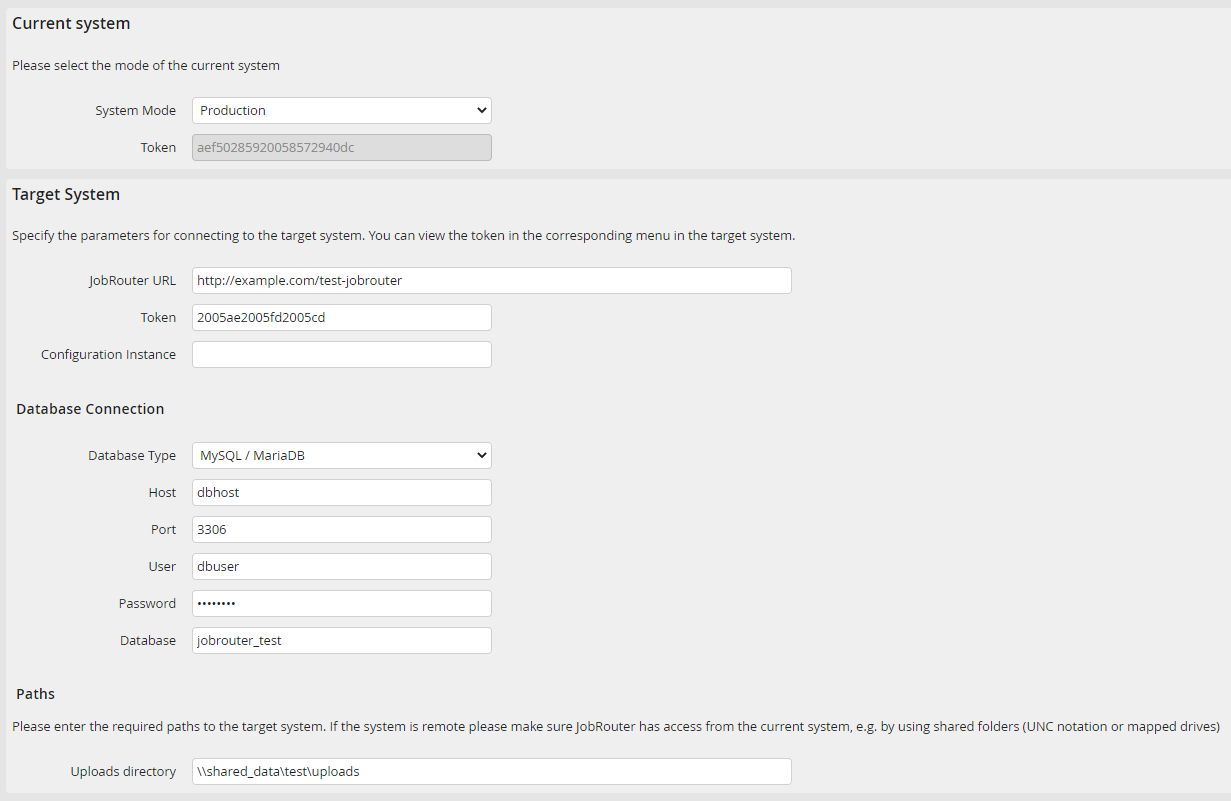
Settings for the System Synchronization
Specify the current system mode, either test or production, under System Mode.
Insert the URL of the target JobRouter and the access token. They can be found in in the Current system section of the JobSync configuration of the target system.
The instance ID is optional and should only be utilized if instances are used.
Enter the database connection to your target system. Depending on the connection type you chose you may perform the settings below.
For the synchronization of processes also the uploads directory of the target system is required.
MySQL / MariaDB
Connection to a MySQL respectively MariaDB Server.
Property |
Definition |
|---|---|
Host |
Enter the server name or its IP address. |
Port |
If not using the default port, enter the server's port number used for this application. |
Users |
Enter a user name. |
Password |
Provide the password for that user name. |
Database |
Give the name of the database used. |
Oracle
Connection to an Oracle Server.
Property |
Definition |
|---|---|
Host |
Enter the server name or its IP address. |
Users |
Enter a user name. |
Password |
Provide the password for that user name. |
Database |
Give the name of the database used. |
ODBC
Connection to an ODBC-compliant data source.
Property |
Definition |
|---|---|
Data Source Name |
Enter a name to the ODBC interface. |
ODBC Type |
Choose a database type from the drop-down menu. |
Users |
Enter a user name. |
Password |
Provide the password for that user name. |
SQLSRV
Connection to the Microsoft SQL Server via the SQLSRV extension.
Property |
Definition |
|---|---|
Host |
Enter the server name or its IP address. |
Port |
Is the server, on which the database runs, not accessed through the default port, enter the relevant port. |
Users |
Assign a user name for the database. |
Password |
Provide the password for that user name. |
Database |
Give the name of the database used. |
