Select Configure Viewer in the JobViewer section of the module overview of the JobRouter configuration menu. The following dialog appears:
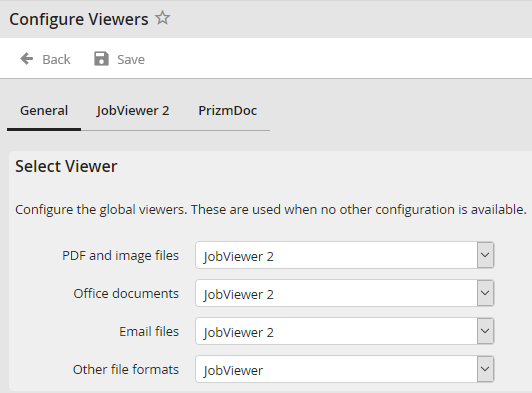
Configuring Viewers: General
General
Choose in the first tab, which viewer you want to use.
You may specify individual settings for PDF and image files, as well as for Microsoft Office files and text files. You can choose between the options JobViewer, JobViewer 2 and Load in Browser. For other file formats, you can choose either JobViewer or the Load in Browser setting.
The options named above have the following meaning:
Setting |
Definition |
|---|---|
Load in Browser |
Choose this option to open the document directly in the browser, without using a viewer. A client side support for the display of the respective file type is required. |
JobViewer |
Select this option only if you use numerous different file formats, which you want to display in the browser. |
JobViewer 2 |
This viewer offers, apart from simple display, the possibility to use Snap & Drop to apply the document values to a dialog directly. The following file types are supported: •PDF files •Microsoft Office files (Word, Excel and PowerPoint) •Text files •Image files (BMP, GIF, JPEG, PNG and TIFF) •e-mail files (EML and MSG) |
JobViewer 2
With this tab you can make settings for the JobViewer 2.
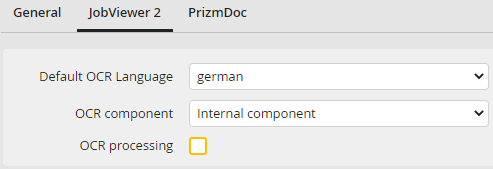
Configure Viewers: JobViewer 2
The following setting options are available:
Setting |
Description |
|---|---|
Cache threshold |
Threshold value in MB, as of which the cache directory is adjusted. The oldest cache entries are removed until the number of cache entries falls below the threshold value. The default value is 1024 MB. |
Default OCR language |
Select the language that should be used as default for the OCR recognition. |
OCR component |
Determine here the desired OCR component. Available are: •Internal component (default setting, already integrated in the service JobRunner, no further installation necessary) •Abbyy (an additional license is required, together with the installation of JobRouterOCR) |
OCR processing |
Here you can globally enable or disable OCR processing in the viewer. At the following points the processing is generally disabled: •DocumentHub •Attachment column and JobArchive column in the process inbox •JobArchive column in the JobSelect overview •Document display in the archive view (except for storage/index forms).
The global setting can be explicitly overwritten in some configuration menus (e.g. in the configuration of a FILE form element). |
Please note: The setting options for the cache threshold value can be found in the menu Instance management, if the Instance Management license is activated.
Please note: The URL used to call JobRouter and JobViewer 2 should correspond to the configured JobRouter URL (under configuration => paths).
PrizmDoc
If you select JobViewer as your viewer, you have to configure the viewer in the second tab PrizmDoc.
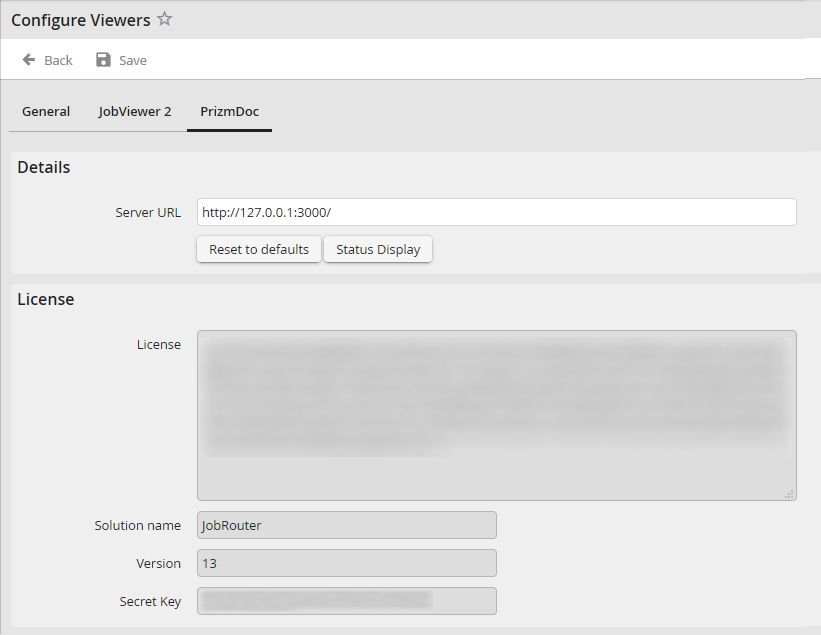
Configuring Viewers: PrizmDoc
The following settings are available:
Setting |
Definition |
|---|---|
Details |
|
Server URL |
Enter the URL to call the viewer. Usually, it is http://localhost:3000/. |
License |
|
License |
The license key for the PrizmDoc Server installation |
Solution name |
The solution name for the PrizmDoc Server installation |
Version |
The PrizmDoc version, for which the given license key is valid |
Secret Key |
Key for the communication between JobViewer and PrizmDoc Client |
