A page can consist of several sections. That allows you to better organize the form and make it clearer for the user.
To create a new section, click in the first line of the page on the symbol  . The cursor appears in the Insert section context menu. You see the editing mask for the properties in a pop-up window. When finished, click Save to store your entries and be taken back to the form editor, or click Cancel to close the pop-up window without saving.
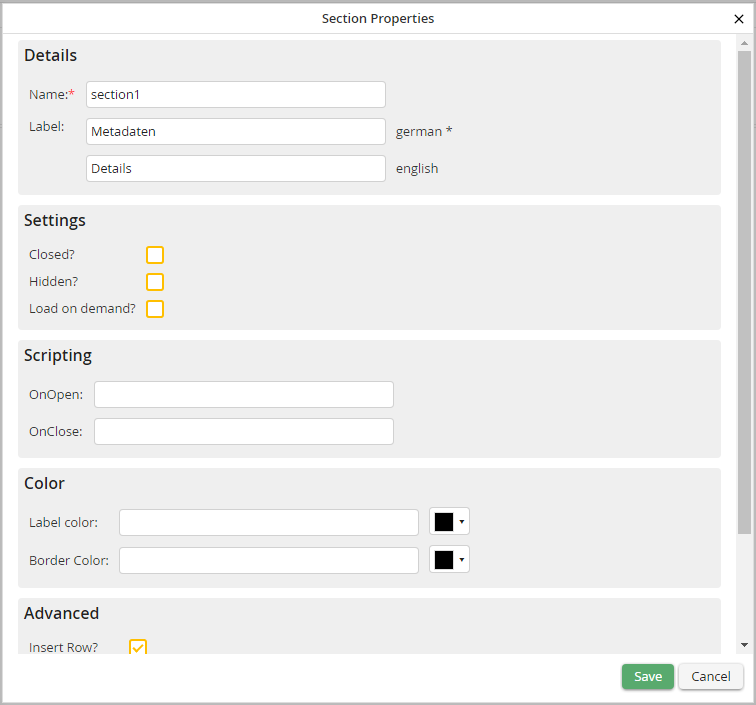
Set section properties
You can specify the following section properties.
Property |
Description |
|---|---|
Name |
Enter a name for each section. This is used to identify the section and is not displayed in the form. |
Label |
Enter a label that will appear as a heading in the form. |
Closed? |
If enabled, the section will be rendered as closed when the form is opened. |
Hidden? |
If enabled, the section is hidden in the form. |
Load on demand? |
If enabled, only the label of the section is displayed in the form. The content can be loaded using the jr_show JavaScript API function. |
OnOpen |
Define scripts to be executed before the section is opened. |
OnClose |
Define scripts to be executed when the section is closed. |
Label color |
Specify a color for the section label. |
Border color |
Specify a color for the section border. |
Properties that are only available when inserting a section |
|
Insert Row |
This property is set by default. If you do not wish to insert a row, disable the checkbox. |
Row Name |
Provide a name for the row. |
Insert Column |
This property is set by default. If you do not wish to add a column, disable the checkbox. |
Column Name |
Enter a name for the column. |
