Create a form by clicking on Forms in the Designer navigation menu to work on a form. You see an overview of all already create forms. By clicking New form in action bar the Edit form properties input mask is displayed.
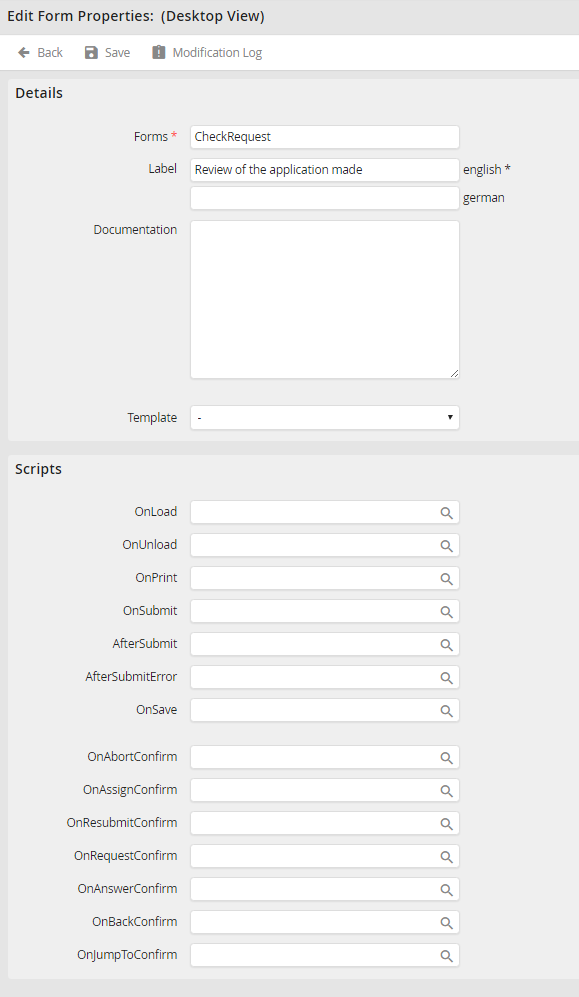
Edit Form Properties
You can specify the following properties of the form:
Form properties |
Description |
|---|---|
Details |
|
Form |
•Allocate a name for your form. Please note: The name cannot be modified later. |
Label |
•Describe your form (only available when editing the desktop view of the form). |
Documentation |
•Here you can enter additional information about your form. |
Template |
•Already existing forms are displayed in the selection list. •Select one and create a copy of the existing form. •Both forms are independently. •They do not relate to each other. |
Scripts |
|
For a more detailed description of the functionalities of the script events see the JobRouter JavaScript API manual. Please note, that not all script events of the desktop view are available in the editing mode for the mobile view of the form. |
|
Click on a symbol for a specific event in the Scripts section  . A pop-up window listing all scripts assigned to the form or globally assigned to the process is displayed. By clicking a row in this list, the respective script will be added to the field of the respective event.
You can also call up a pop-up window via the Modification log in the action bar. You will see information about all changes made to the form.
After you have made all the entries in the Edit form properties mask, click Save. The form can also be found in the list in the Forms section in the designer navigation menu.
Click on the form name in the Forms overview to edit the form properties again. The Edit form properties mask is displayed.
