To edit process properties select in the category Process settings in the Designer navigation menu the entry Properties. The editing mask for the process properties is displayed.
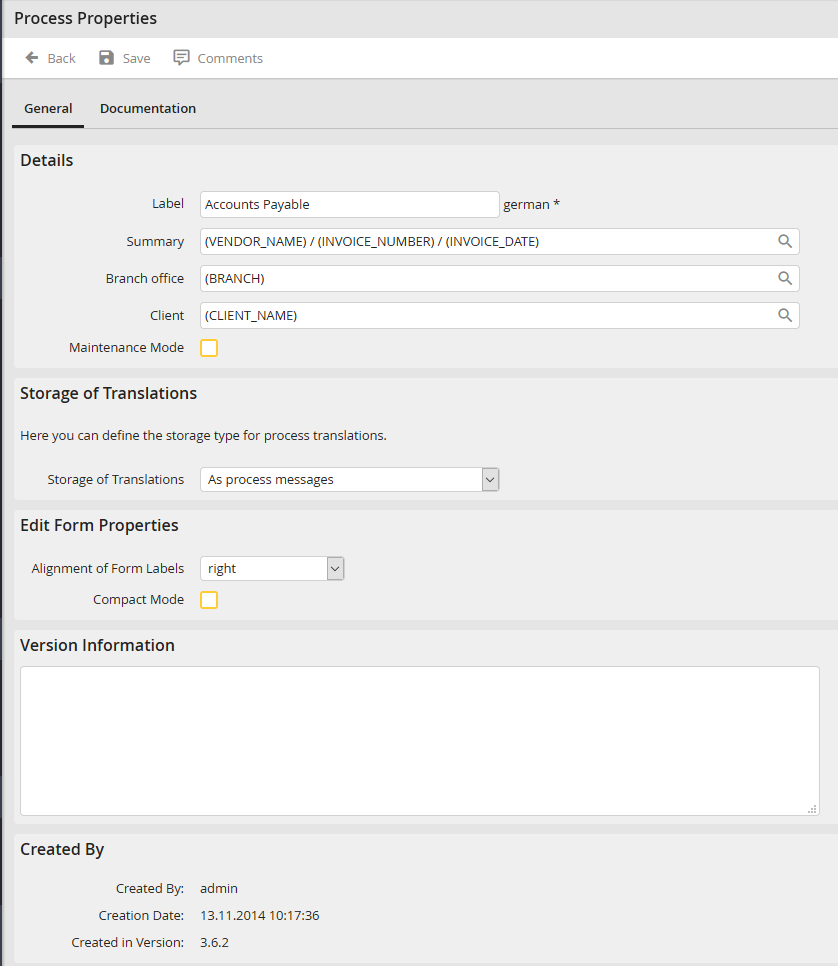
Process properties
Insert in the field Label a description of your process. If you created a multilingual process, you will get an input option for each process language. In the field Subject you can change the subject of the process.
In the two fields below, you can fill in the user-defined instance fields. These fields are available to the user in the general Inbox and Complete box as additional columns if they have been activated in the user profile. These fields can be configured by the administrator in the User-defined settings section.
See also the Administrator's Manual chapter System-> Configuration Tools-> Settings-> User-defined instance fields.
If you click on the symbol  , you will gain access to all process table fields. In the screenshot above, the fields Branch office and Client have been configured here and assigned to the corresponding process table fields.
As long as the maintenance mode is active, only users with Process management rights and persons responsible for the process with Process editing rights can open and send steps of this process. All other users receive a message stating that this process is under maintenance.
The service modules JobImport and JobTimer are also deactivated for processes in maintenance mode.
In the picklist Storage of translations you can define whether the translation should be stored in the process for every element individually or as process message. If you select the option As process message you can easily use the translations once made for other process elements. Changing a process message automatically affects all other process elements referring to this process message. Each element is stored by default.
In the picklist Alignment of the labels in the form you can define the alignment of the element labels in the step forms. You can chose between the values right and left.
Mark Compact display in the checkbox if you want to see the form in a compressed version in the process. Thereby, e.g. font size, element height, and symbol size will be reduced.
You can enter further process information in the text field Version information.
In the section Created by you can see, when and which user created the process. In addition the JobRouter version in which the process was created is displayed.
In the section Documentation you have additional possibilities to describe your process. Save your changes via Save.
