Save revision marks or other information about your process in the process comments. If more than one person works with one process, important notes can be added. In order that all assigned users can look at the latest process comments to be informed about the latest adaptations to that process version and/or add their own comments.
Create a process comment
Create a process comment at any time and at any point in the JobRouter Designer. Click Comments in the action bar. A pop-up window appears with the following form window.
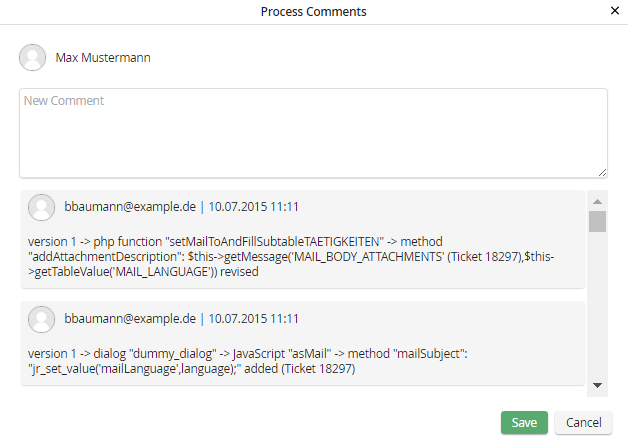
Create a process comment
In the upper section, you can enter a new comment, that is saved by clicking Save. Under Comments you can see all already existing process comments with first and last name of the author and date and time. Via Cancel you can exit the pop-up window without saving your entries
An overview of all process comments can be found in JobRouter Designer overview. Click on Overview in the Designer navigation menu. The click on Process comments in the Documentation section. A list of all process comments is displayed.
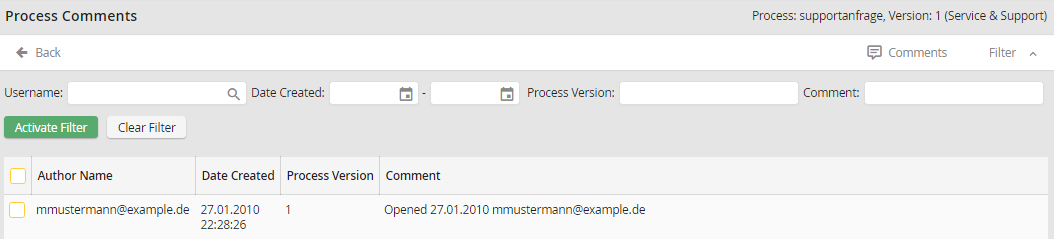
Process comments overview
The following properties are displayed.
Process comment properties |
Description |
|---|---|
Name of the poster |
Name of the user who entered the comment |
Date created |
Date and time of the comment |
Process version |
Version of the process in which the comment was created |
Comment |
Text of the comment |
Deleting a process comment
Since process comments are intended to be available to all who work on a process, there is no way to delete them. This will remain the comment sequence for the entire process.
