The simulator allows you to test your process without affecting the live system. You can run the process from start to finish, or you can select and test individual steps.
Running a simulation
The simulator can be selected via the symbol  in the top menu.
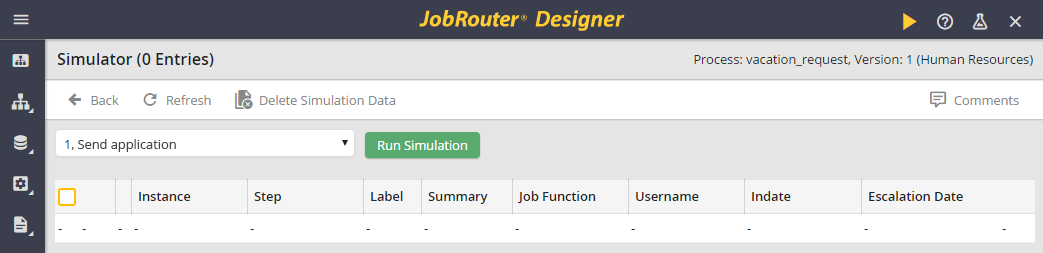
Simulator
Start the simulation via Run simulation. The process starts with the start step and executes all steps in the order you specified. You can also test a step separately. Select the desired step from the selection list. Click Run Simulation. The step is executed.
In both cases, your process is executed as in real operation. If you start a step, the corresponding form will be displayed in a new window. For example, a form might look like this.
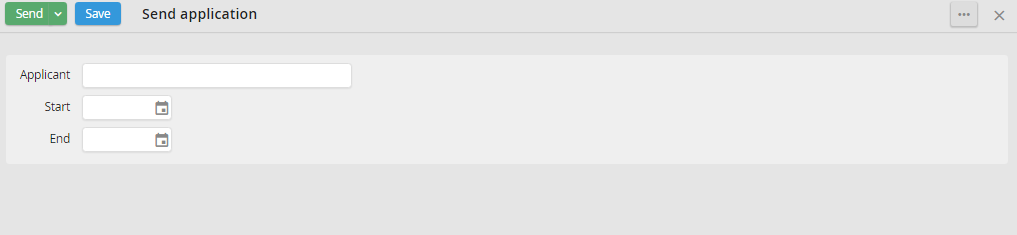
Form vacation request
When you send the step, all rules will be displayed.
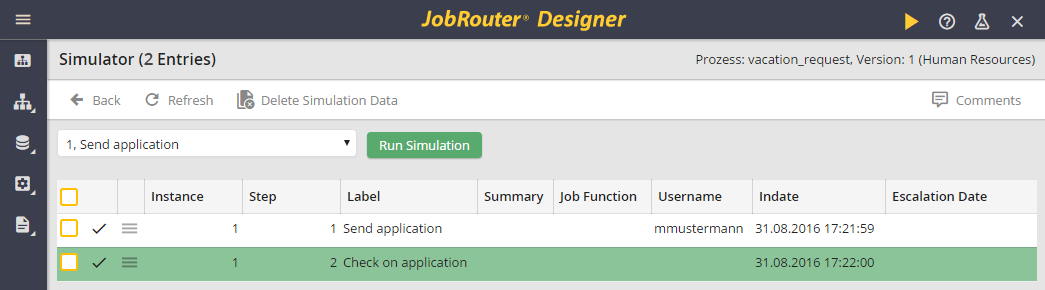
Completed steps
You will see the following simulation properties.
Simulation property |
Description |
|---|---|
Status
(without symbol)
|
The status displays whether a step was correctly processed and whether rule conditions were fulfilled. •All rules are have been met, the step is executed correctly •The step is ready for editing. •An error occurred. The step could not be completed. |
Instance History |
Click on the symbol |
Process Table / Subtables |
The process table and subtable values are displayed in a pop up window. |
Step |
The step number is shown. |
Label |
The step name is displayed. Click the name to open the corresponding form. |
Subject |
Shows the subject of the current incident. |
Job Function |
The Job Function assigned to the process is displayed. Click on the name to open a pop-up window displaying all members of a Job Function. |
User name |
The user name that processed the step |
Indate |
Shows the moment when the step arrived in the inbox. |
Escalation date |
Shows the processing deadline, if defined for the step. |


 to see the instance history in a window.
Click Refresh to update the simulation. If the simulation was successful, you can delete the entries by clicking Delete simulation Data. The simulation data is removed from the database.
Step actions
If you enable the checkbox for one or more instances, the Perform action menu appears in the action bar. There certain actions are available. The display of specific actions depends on the rights of the logged-on user and the status of the selected step.
The selection Delete is available to you at any time if you got the rights for it.
The selection Resend step is available to you as soon as it is a step which contains errors.
The selection Reactivate step is available to you as soon as it is a completed step or the step contains errors.
You can choose Abort step if the step is open or contains errors.
Please note: The difference between Resend step and Reactivate step is that Resend step will only re-execute the rules. With Reactivate step, the system activity is also executed before the rule is executed.
