Since you are activating your scripts from form elements, add them under the Forms section in the Designer navigation menu. When you selected the required form the button Scripts will appear in the action bar. Click Scripts to see all previously defined scripts for that form.
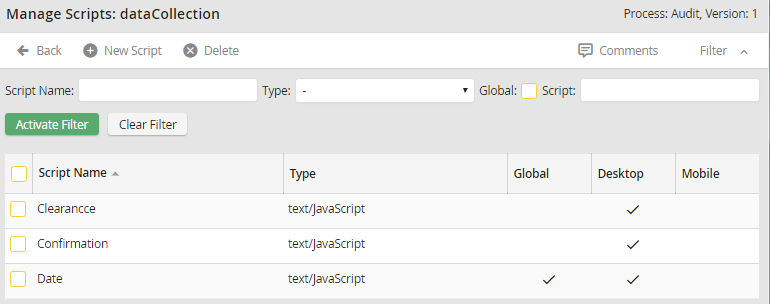
Script Overview
Script Name displays the name of the script, while Type shows what sort of script it is. If the Global box is checked, the script can be used in any form within a current process. If the Desktop box is checked, the script is available in Desktop view, is the Mobile box checked, the script is integrated in a mobile form. The display provides just an information. You can activate or deactivate the form with Edit script.
To alter an existing script, click on its name. To add a new script, click New script in the action bar. In both cases, the Edit script form will be displayed.
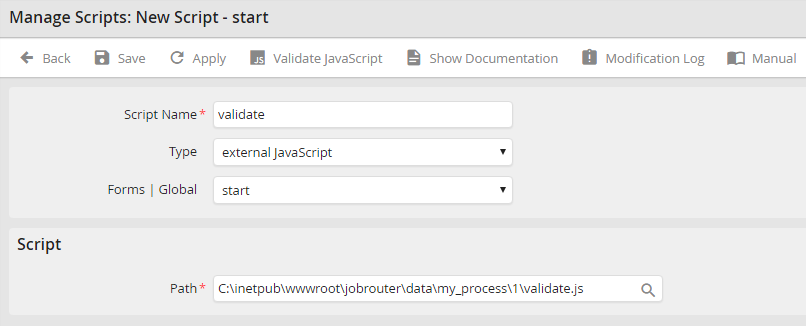
External Script
Enter a name for your script in the field Script name. Select the script type under Type. You can select JavaScript or VBScript. If you choose this option the script definition tags will be automatically inserted. You can start directly with the code or the functions. If you select Other, you must insert the appropriate tags yourself. If you want to incorporate an external script written in JavaScript or VBScript, an additional field, Path, appears in the form window. Enter the path to your respective script. You can insert the jr_jobrouter_url variable into the field by using the magnifier icon. It will be replaced by the JobRouter_URL when the script will get incorporated.
If you select the option Global, when Form | Global is offered in the picklist, the script is available in all forms of the current process. If you choose a form by selecting Form from the picklist, you can only use the script in that particular form.
If the type JavaScript is selected, you can choose in the checkbox, whether the script should be available in the mobile client respectively in the JobRouter app or in the desktop view.
The editor you are writing your script in can be seen in the Script section. On the left side various lists with JobRouter objects and functions can be seen, which you can use in your script. Clicking the symbol  maximizes the editor and hides the JobRouter functions. Click on the symbol once more to show the JobRouter functions again.
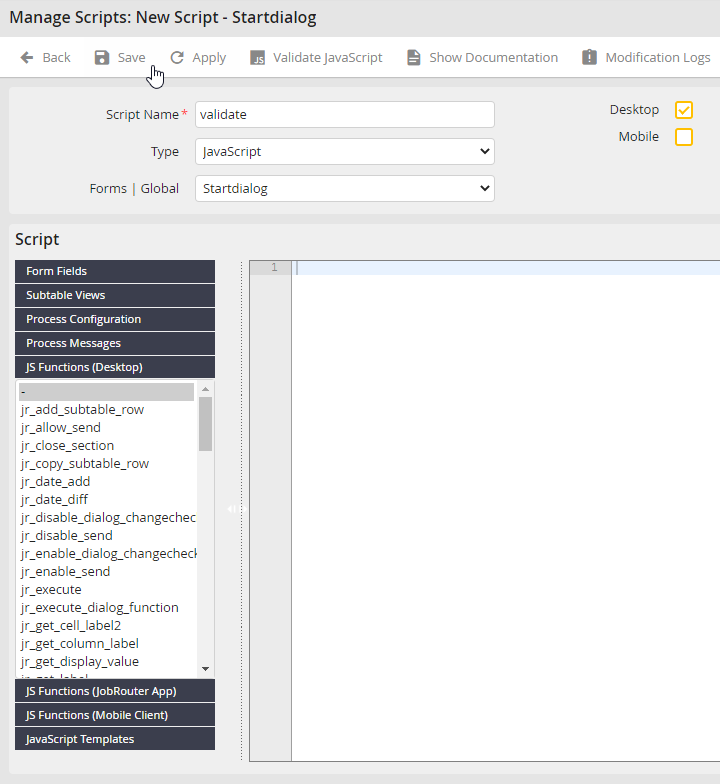
Script editor
If you used the editor to write your script, use Verify JavaScript for its verification. An error message appears if a syntax error is found.

JavaScript Error Message
Save a script
Click Apply to save your script. Click Save to save the script and to be redirected to the script overview.
Documentation
Click Show documentation in the action bar to display a documentation box. Use this text box to describe the function of your script in more detail.
Script Documentation
Delete a script
You can delete a script by checking the checkbox next to its name in the Script overview. Then click Delete in the action bar. The script will be deleted.
