Use columns to show the user selected process fields in the inbox. To add a new column, click the  symbol next to the corresponding inbox in the Inbox overview. An overview of the previously defined columns for this inbox is shown.

Process Inbox Columns
The column overview shows information about the defined columns, including, for example, name and type.
Please note: The status of the checkboxes under Filter and Print cannot be modified in the overview, but can be modified in the column properties.
Use the arrows up  and down
  to sort the columns of your inbox.
To add a new column, click New Column in the action bar. To modify an existing column, click the corresponding name. In both cases, the Edit column form window appears. Click Save to store your changes. You will be taken back to the columns overview.
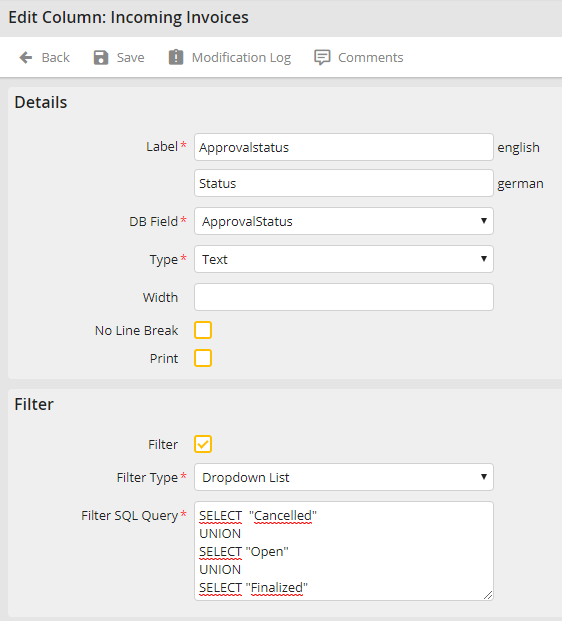
Add/Modify Column
You can specify the following properties.
Column properties |
Description |
|---|---|
Label |
•Assign a title to the column. |
DB field |
•Select a process table field or a JobRouter standard field. •Standard fields are enclosed in square brackets in the Column overview. •In the illustration above, standard fields are marked with a red circle (Process - Username). |
Width |
•Specify the width of the column in pixels. |
Filters |
•Check the box to allow the column to be shown in the inbox filter. |
Filter Typ •Text •Dropdown-List |
•The content of the filter is displayed as text. •The content of the filter for a process table field will be displayed as a dropdown list. Multiple selection of a value is also possible here. |
Filter Size |
•Specify the field width for the inbox filter. |
No line break |
•Check the box to prevent automatic line wrapping in the column. |
•Check the box to include the column in the print view. |
|
Type •Text •Image
•Link •Date •Date / Time •JobArchive
|
Select the field type for the column. •The field value will be displayed as text. •The field value will be interpreted as a file name of an image file located in the data directory. •The field value will be interpreted and displayed as a hyperlink. •The field value will be displayed as date. •The field value will be displayed as a date and time. •The field is interpreted as document and the download and display function is available in the overview. |
Delete an inbox column by checking the box next to its name, then clicking Delete in the action bar.
Please note: When filtering by date, the time is not taken into account.
