Click Process settings | Manage languages in the Designer navigation menu to see an overview of all previously incorporated process languages.
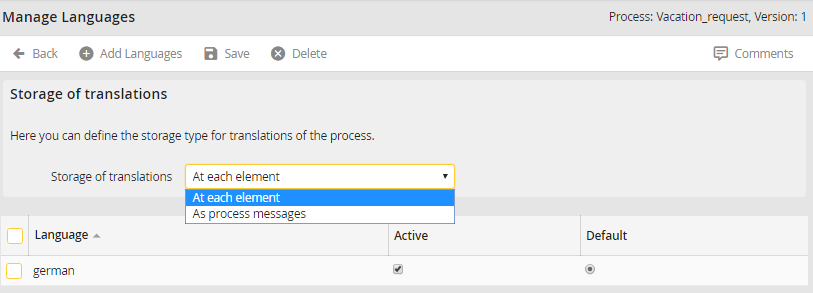
Manage Languages
Select if translations are saved for every element in the process, or as process message in the Storage of translations picklist. If you select As process messages, translations can be easily reused in other elements of the process. Changes in the process messages are automatically applied to all elements of the process, if they refer to process messages. By default, it is stored for every element.
All languages currently available to the process are displayed in the Language column. Use the checkboxes in the Active column to determine which a language can be used in your process. A language becomes enabled/disabled by checking/clearing the checkbox. Use the radio button in the Default column to choose a default language. This language will be preferred.
Incorporate additional languages in your process via Add a language in the action bar. The following form window is displayed.
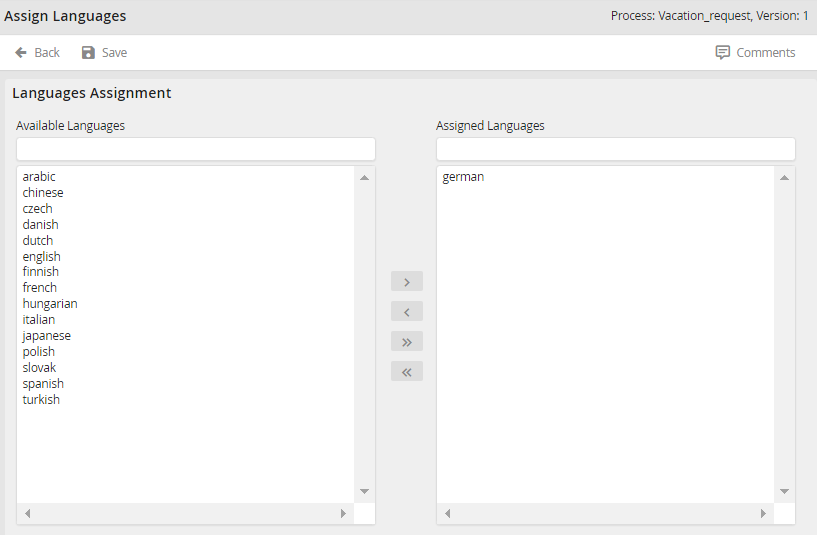
Adding languages
Choose a language. Click on the arrow  to apply the selected language to the current process. The arrow back
  removes the selected language from the current process. Use the arrows
  /
/  to add all available JobRouter languages or remove all languages from the current process. Click Save to save the assigned languages and return to the Manage languages overview.
