JobRouter offers a specific rule type for the communication with DocuWare. Through these rules the following activities can be performed in DocuWare:
•Index
Provide new keywords for a DocuWare document.
•Archive attachment
A document attached to an instance will be stored by DocuWare.
•Archive PDF
A JobRouter form will be stored in DocuWare as a PDF.
•Attach attachment to document
A document attached to an instance will be stored as an attachment to an existing DocuWare document.
•Attach PDF to document
A JobRouter form will be attached in PDF format to an existing DocuWare document.
Use JobRouter Designer to create a DocuWare rule. Open the Rule Overview and click New Rule (see the JobRouter Workflow Design manual).
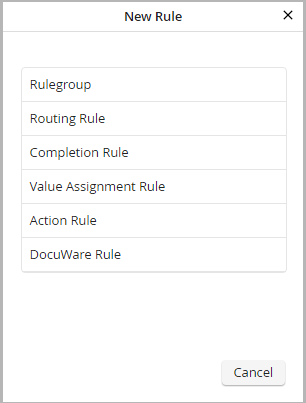
Now select the rule type DocuWare.
You will find yourself in the Edit Rule dialog window (see the JobRouter Workflow Design manual). Configure general settings and define conditions on the General tab. Configure DocuWare functions on the tab Advanced.
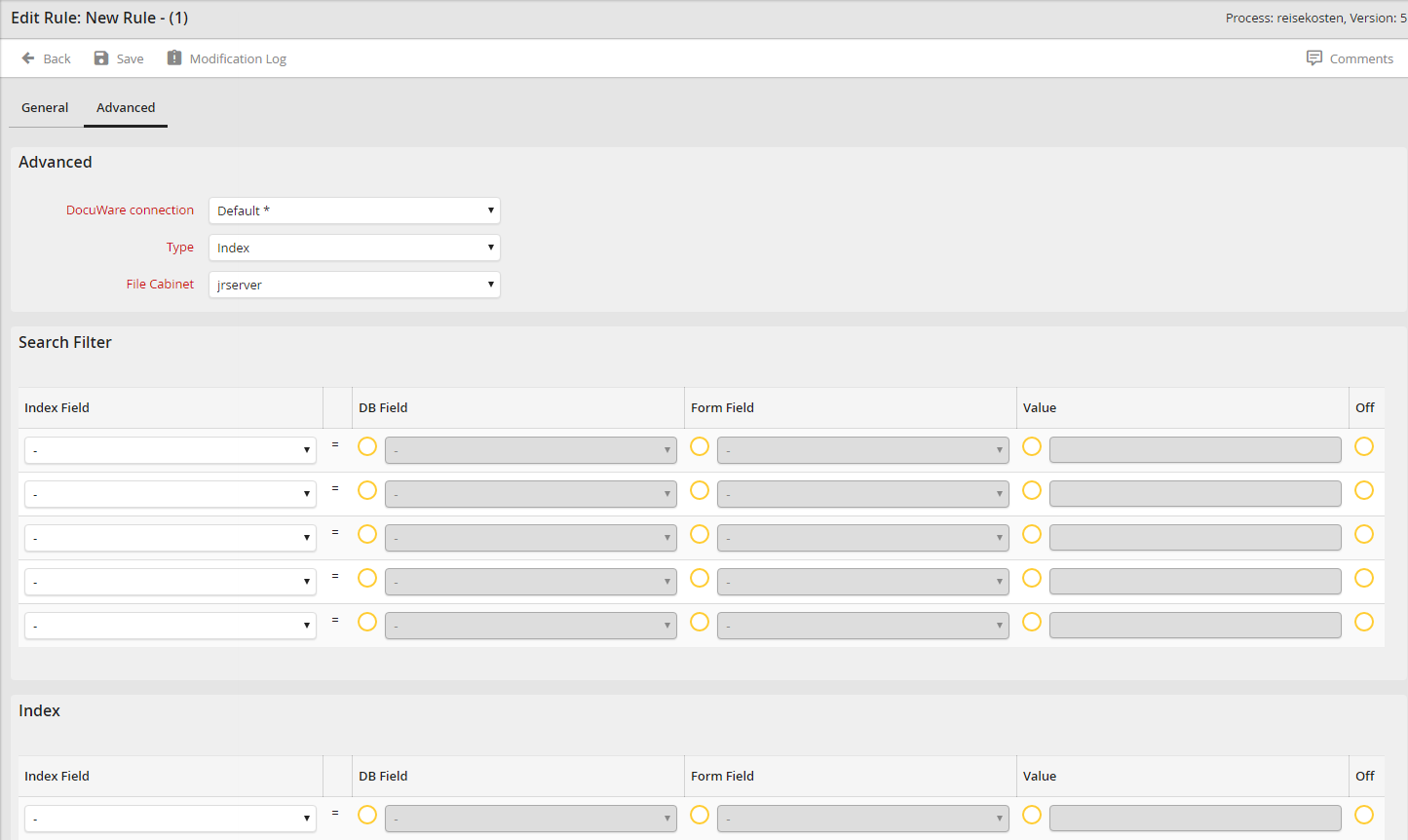
You may configure the following settings in this dialog window:
DocuWare Connection
Choose the DocuWare connection in which the action should be executed. This default connection will automatically be suggested when a rule is created.
Type
Select an action to be executed from Index, Archive attachment, Archive PDF, Attach attachment to document, and Attach PDF to document.
Archive
Select the archive to be acted upon.
Form
If you select one of the options Archive PDF or Attach PDF to document, an additional drop-down list appears, from which you choose the form that is to be stored in a tabular format as a PDF.
DB Field
If you select one of the options Archive attachment or Attach attachment to document, an additional drop-down list appears from which you may choose a field of type Attachment from the process table. The document attached to this field will be used when the rule is executed.
Search filter
The search filter is available for the action types Index, Attach attachment to document, and Attach PDF to document.
Here you specify the document to be the object of the action. Do this using a search filter that can have up to five criteria. The filter must be able to uniquely identify the document.
In the Index field column, select the DocuWare field on which to filter. Then choose the source of the new value via the radio buttons. Choose DB field, to read the value from the process table; Form field, to get the value from the form; or Value, to use a fixed value. Select the radio button in the Off column to not use the filter.
All filter criteria will be connected with the AND Boolean operator.
Index
Here you may make entries in or create up to 20 DocuWare index fields.
Under the Index field column, select the DocuWare field into which you wish to enter a new value. Then choose the source of the reference value using the radio buttons. Choose DB field, to read the value from the process table; Form field, to get the value from the form; or Value, to use a fixed value. Select the radio button in the Off column to not use the filter.
