Define a button that will open the DocuWare WebClient to display a document or a result list. You will need to specify the GUID (Global Unique Identifier) in the web integration or the archive field.
Please note: This feature requires a licensed copy of the DocuWare add-on module.
Click on the second  symbol in the second row. The following pop-up window appears.
Configuration of the DocuWare connections version ≥ 6.5
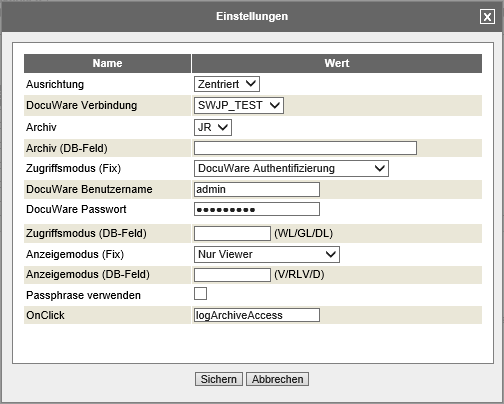
DocuWare WebClient settings (DocuWare Version ≥ 6.5)
You may configure the following settings:
WebClient Settings |
Explanation |
|---|---|
Alignment |
Select how the button is aligned in the column, left, right or centered. |
DocuWare Connection |
Select one of the previously configured DocuWare connections. |
Archive |
Select an archive for your connection. |
Archive (DB field) |
Enter the name of the result column containing the GUID of the archive |
Access mode |
Select the mode of access •Windows login •Guest login, •DocuWare Authentication (DL) |
Access mode (DB Field) |
Enter the name of the result column containing the access mode. |
DocuWare username |
Username of the permanently defined DocuWare user for the web client call-up. |
DocuWare password |
Password for the DocuWare user |
Display mode |
Chose the type of display •Viewer (V) •Result list and Viewer (RLV) •Download (D) |
Display mode (DB Field) |
Enter the name of the result column containing the display type. |
Result list |
Select a result list assigned to the archive (only in result list and viewer display mode). |
Result list (DB field) |
Enter the name of the result column containing the GUID of the result list (only in result list and viewer display mode). |
Using a passphrase |
Activates the encrypting of the URL used to access the WebClient using the DocuWare passphrase set in the configuration. |
OnClick |
Enter the name of a script function that is to be executed when the button is pressed. All DocuWare search filters defined in the settings will be passed to this function as an object. The return value false can be used to disable the default behavior (opening the DocuWare WebClient). |
To find the element, you may define a filter of any size. To do so, add an index element to each filter criteria. Click the first symbol in the row to open the following settings pop-up window.
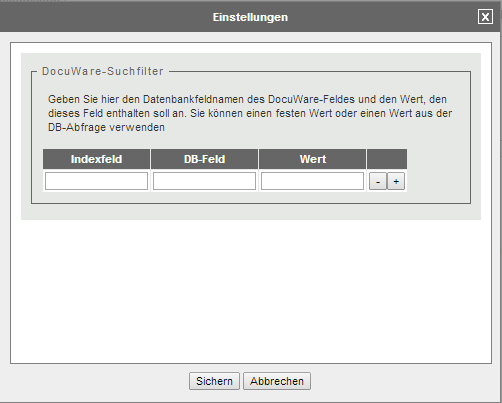
DocuWare search filter
Under Index number, enter the ID of the DocuWare field whose value you want to read. Under DB field, enter the name of the database column to read, or give one or more fixed values to use as a filter. Use the plus/minus symbols  to add/remove filter fields.
Click Save to store your settings. The pop-up window will close automatically. The Edit Report dialog window with the Result Columns tab will be displayed.
Configuration of the DocuWare connections version < 6.5
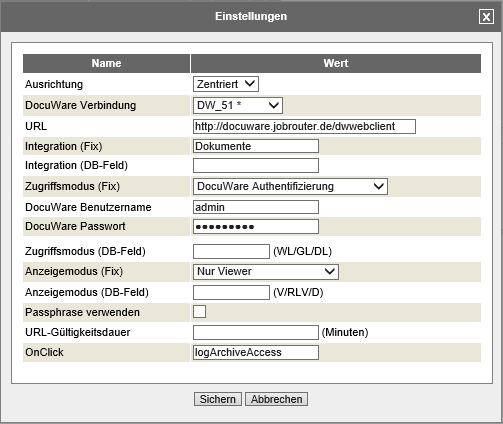
DocuWare WebClient settings (DocuWare Version < 6.5)
You may configure the following settings:
WebClient Settings |
Explanation |
|---|---|
Alignment |
Select how the button is aligned in the column, left, right or centered. |
DocuWare Connection |
Select one of the previously configured DocuWare connections. |
Integration |
Select a DocuWare integration. |
Integration (DB Field) |
Provide the name of the result column containing the DocuWare integration name. |
Access mode |
Select the mode of access •Windows login •Guest login, •DocuWare Authentication (DL) |
Access mode (DB Field) |
Enter the name of the result column containing the access mode. |
DocuWare username |
Username of the permanently defined DocuWare user for the web client call-up. |
DocuWare password |
Password for the DocuWare user |
Display mode |
Chose the type of display •Viewer (V) •Result list and Viewer (RLV) •Download (D) |
Display mode (DB Field) |
Enter the name of the result column containing the display type. |
Using a passphrase |
Enables a DocuWare passphrase to be entered in order to encode the URL for the web client call-up. |
Passphrase |
DocuWare passphrase for the chosen web integration. |
URL validity period |
Time in minutes during which a link to a DocuWare document can be called up. |
OnClick |
Enter the name of a script function that is to be executed when the button is pressed. All DocuWare search filters defined in the settings will be passed to this function as an object. The return value false can be used to disable the default behavior (opening the DocuWare WebClient). |
