By clicking on Display Settings in the configuration tools overview of the JobRouter settings the following editing mask will be displayed:
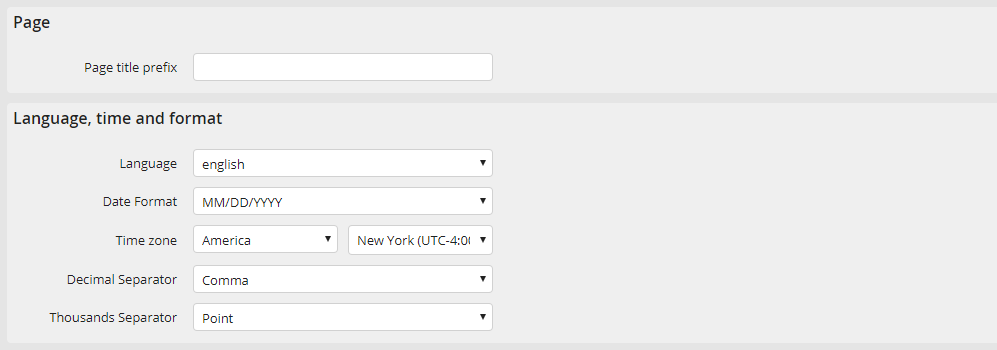
The following settings can be made:
Please note: The settings made here are used as a template for the user settings. If one of these settings is changed for a user, the change takes effect, but only for the corresponding user.
Display Settings |
Definition |
|---|---|
Page |
|
Prefix for page title |
Store the prefix you want to have displayed as a title for all JobRouter pages. |
Language, time and format |
|
Language |
Choose a standard user language. This language will be used for the Login mask also. |
Date format |
Determine the JobRouter date display. |
Time zone |
Set the system time zone here (only for license module JobGlobaltime). The JobRouter system time zone is used as the default value for users without a defined time zone, but not as a template when creating users. |
Decimal Separator |
Choose a decimal separator symbol. This symbol will be used automatically, if the input type was defined as DECIMAL for a textbox. |
Thousands Separator |
Determine the symbol for the thousands separator. |
Please note: The JobRouter system time zone must always be selected identically to the time zone of the database server.
Display Settings |
Definition |
|---|---|
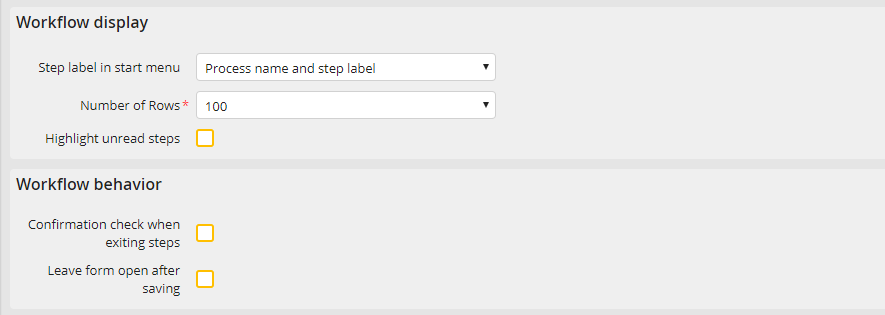
Workflow display |
|
Step label in start box |
Here you determine, if you want only the step label or the step label and the process name displayed in the start menu for the starting steps. |
Number of Rows |
Determine, how many rows should be displayed by default in inboxes, archive views, and overviews. Additional rows will be spread on several pages automatically. |
Highlight unread steps |
Activate this option to highlight those steps in the inbox, which have not been performed by a user. |
Workflow behavior |
|
Confirmation check when exiting steps |
If you activate this checkbox, a confirmation prompt will be displayed when leaving a dialog (as far as dialog data has been modified), warning against data losses. The same appears when browsing through the individual steps in the inbox via the arrow key. This global setting can be prevented in individual dialogs by returning a false value in the onUnload script. Please refer to the respective chapter in the JavaScript API manual |
Leave form open after saving |
If this checkbox is activated, a dialog will be kept open after saving when a step editing, e.g. in the inbox, is performed. |
Display Settings |
Definition |
|---|---|
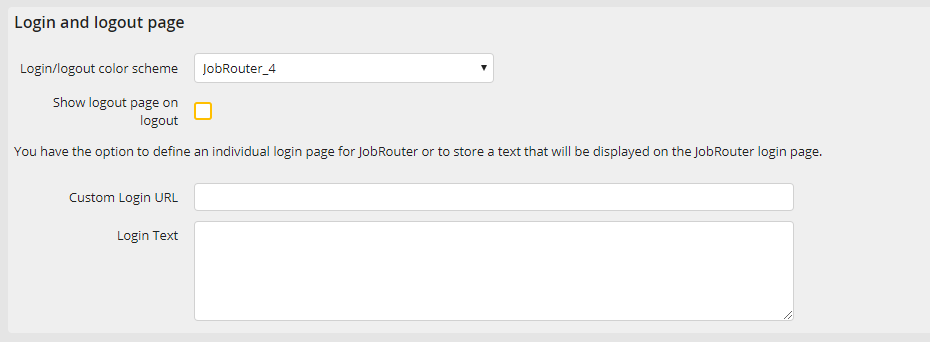
Login and logout page |
|
Login/Logout color scheme |
Select the desired color scheme. |
Show logout page on logout |
If this option is activate, the user will receive visual feedback after he successfully logged out. He can use the displayed site to log in again. If a custom login URL is defined, the logout page will be ignored. |
Custom Login URL |
Enter a user-defined URL if you want JobRouter to redirect to another page automatically after logout. |
Login Text |
Enter a text that is displayed to a user when they log in. |
