Add a new Job Function by clicking New in the action bar.
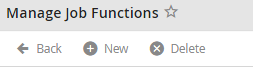
Creating a new Job Function
Or to edit an existing Job Function, click the corresponding line in the overview. In either case, the Edit Job Function dialog window is displayed.
Please note: The Processes and Process Inboxes tabs are only shown for already created Job Functions. They are not available while creating a new Job Function.
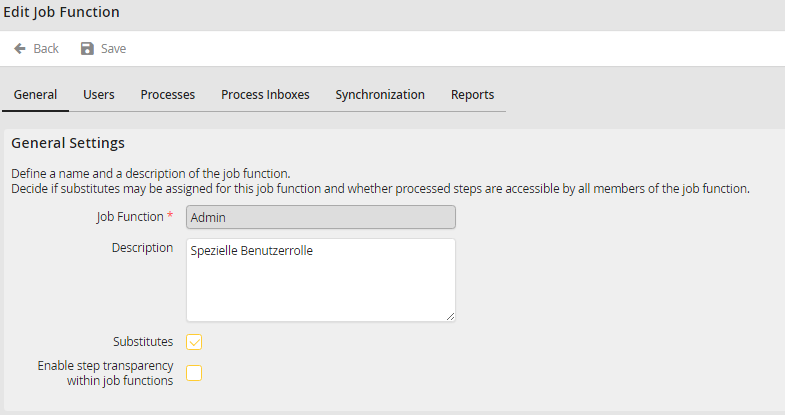
Adding/Editing an Existing JobFunction
You may configure the following settings.
General settings |
Definition |
|---|---|
Job Function |
•Required field •Assign a name to the Job Function Please note: Once saved, an assigned Job Function name cannot be changed. |
Description |
Add a description to the Job Function |
Substitutes |
•Check the box to activate the substitution function for the Job Function. •The members of the Job Function can thereafter specify substitutes for the Job Function.
Please note: The JobSub add-on module is required for this feature. |
Transparency within Job Functions |
Click this box to allow all users of the Job Function to see in their Completed folder the steps completed by other users. |
Click Save after making your entries. The settings will be saved. You will be returned to the Job Functions overview.
