You may define both number and content of the display columns to hold the results from the database lookup. You have full control over which data are displayed and even how they are displayed. You specify, for example, how wide the display columns should be, in which color the data will appear and which icon is to be used.
Go to the Result tab in the Edit a JobSelect Report window. The following list appears.
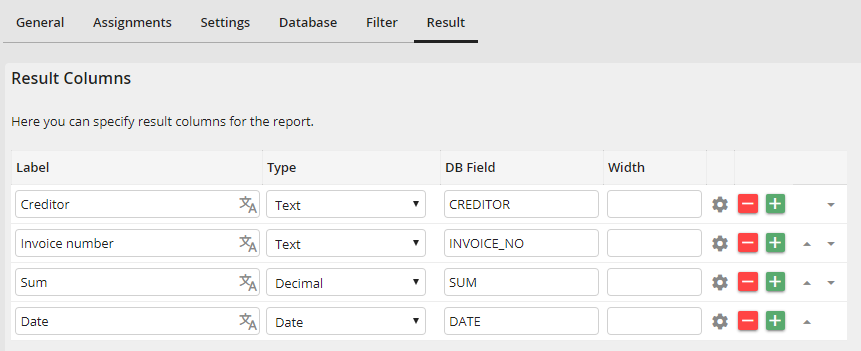
Defining result columns
Set the name of the individual columns of the report in the Label field. Translations of the label can be added by using the  button on the right of the field (Only with licensed JobMultilingual module). The Type field is used to define the field type of your columns. In the DB Field field you define which database field is used for the content of the column. The width of the column is set in the Width field in pixels.
Click on the  symbol in the second last column of the table to configure additional settings for columns depending on the type. These settings are described in the following chapters.
Example of a report:
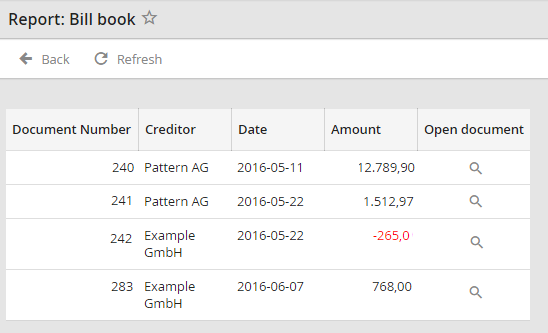
Report: Bill book example
