For each field you may click the  symbol in the second last column to configure further settings. A pop-up window will be opened when clicking on the symbol.
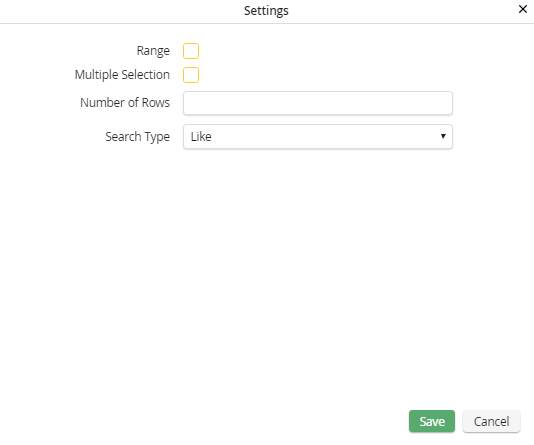
Filter settings
For each field, you can initiate a section search by setting a tick. In this case the selected field will be shown with two input or selection fields in the filter. Now the user can search for values between a lowest and highest value.
For selection and text type fields, it is also possible to set the Search type. You can define if the value entered by the user has to correspond exactly or just partly to the search result. The wildcard symbol (*) can be used for this so called Like Search.
For selection type fields it is also possible to activate a Multiple selection. This enables the user to search for multiple values at the same time. Combined with Multiple selection you can also enter the Number of rows that should be displayed in the search list. Range search and Search type are not available in connection with Multiple Selection.
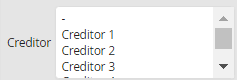
Multiple selection
For fields of the type Date (DATE) and Date (TIMESTAMP) the options Format and Time zone are available. Here you can choose in which format and which time zone the date should be displayed.
The following table lists the field types and their settings:
Field type |
Definition |
Settings |
|---|---|---|
Text |
Text input field |
•Range •Search type |
Decimal number (123.00) |
Numeric field |
•Range |
Date (DATETIME) |
Date field |
•Range •Format •Time zone |
Date (TIMESTAMP) |
Unix time stamp |
•Range •Format •Time zone |
Selection |
Drop-down list |
•Range •Multiple selection •Number of rows •Search type |
Click Save to save your settings. The pop-up window will close automatically. You will see the Edit Report dialog window. Click Apply in the action bar to save your settings.
Settings of a selection field
Choose Selection, if you want to provide the user a picklist. here you may configure additional settings for this list. When clicking on the  symbol a pop-up window will be displayed.
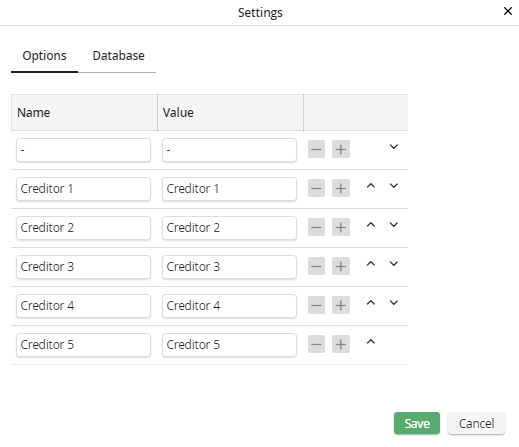
Filter field of the selection type - Settings
In the Options section you can create an individual picklist. In the Name field, assign a label that will appear in the picklist. The value you enter into theValue field will be used for filtering the picklist. Use the symbols  and
and  to add a line to or delete a line from your list.
Click on the Database tab to get the following window:
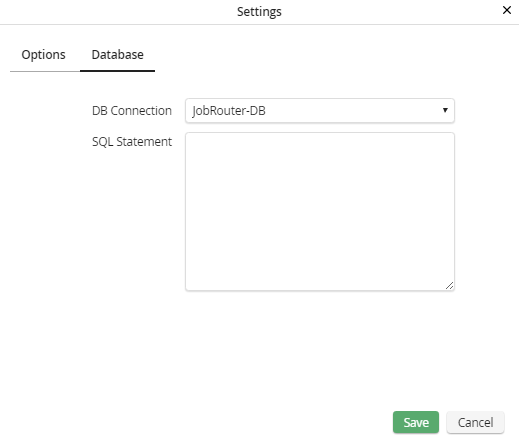
Filter field of the drop-down type - database settings
You may use any database for the entries in the picklist. Choose that database in DB Connection, that contains those contents, which should be displayed in the pickup list. Depending on the selected Database connection type, you may have to specify further settings. For more information on the settings you need, see chapter Setting up the database connection.
Use the SQL Statement field to select which entries are displayed in the picklist. This is the same principle as described in the chapter Defining database queries.
Click Save to save your settings. The pop-up window will close automatically. You will see the Edit a Report dialog window, again. Click Apply in the action bar to save your settings.
