In this menu you can register external Identity Providers in JobRouter. These will be used on login to authenticate users.
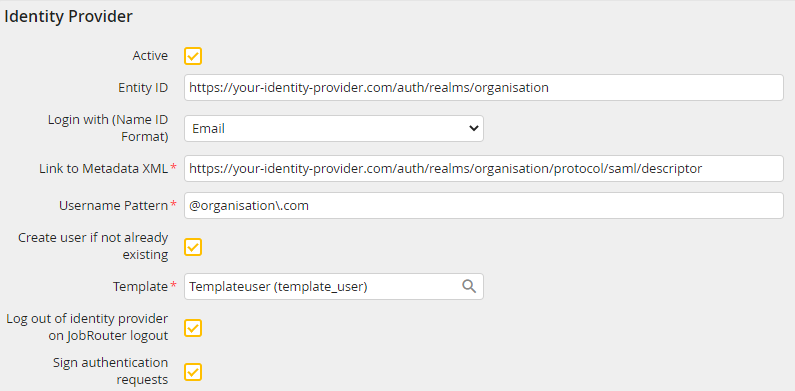
General Settings
Setting |
Description |
|---|---|
Active |
If the checkbox is activated, the Identity Provider is used for authentication. |
Entity ID |
Here you can enter the Entity ID of the Identity Provider. |
Name ID Format |
Here you define which user ID shall be transferred to JobRouter for the Identity Provider assignment.
Please note: If E-mail is used as Name ID Format, we recommend for safety reasons the activation of the option Unique e-mail address in the security settings! |
Link to Metadata XML |
Here you can insert the Identity Provider URL under which the SAML meta data XML is provided. |
Username Pattern |
Here you can insert the regular expressions of PHP. This way it can be checked based on the expression if the user should be forwarded to the Identity Provider. It the user name is used for multiple providers, the first one will be used. |
Create user if not already existing |
Here you can login users to JobRouter, who do not have a JobRouter user account. If the checkbox is activated and the Identity Provider authentication was successful, a user account is created in JobRouter, if there is none yet. Thereby, User attributes unlocked in the Provider can be applied. This setting also activates the appliance of attributes of already existing users. This is performed with the login. |
Template |
Here you can select the template user, who is used as reference when creating new users. Here display settings, rights, user profiles, and Job Functions are applied. Attributes that are configured for the synchronization with the Identity Provider overwrite the values that are applied by the template user (for further information please see the chapter Attribute). This setting is only available if the setting Create user if not already existing is activated. |
Log out of identity provider on JobRouter logout |
If this checkbox is activated, the user is signed out from the linked Identity Provider when he is signs out from JobRouter. |
Sign authentication requests |
If this checkbox is activated, all authentication requests are signed with the stored certificate. |
Please note: JobRouter recommends using a certificate to sign authentication requests.
This tab is only available if the setting Create user if not already existing is activated.
Here you can link the user attributes enabled in the Identity Provider with the existing attributes and user-defined fields in JobRouter. The respective values are synchronized with the login.
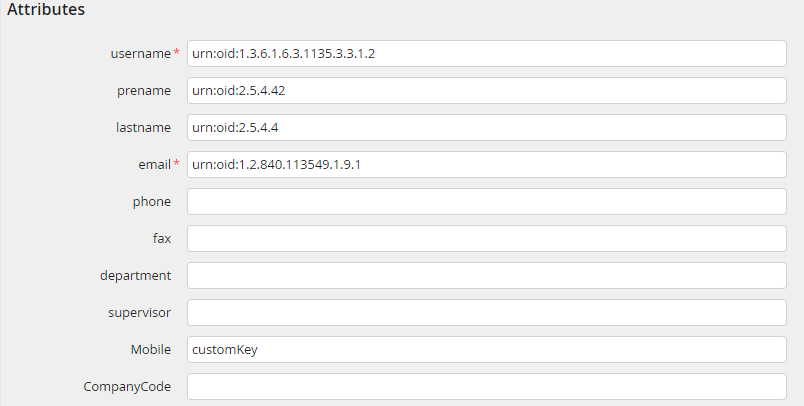
Attribute mappings
You can get a list of all available SAML attributes by clicking Display SAML attributes. Thereby an Identity Provider authentication is mandatory (if not performed before).
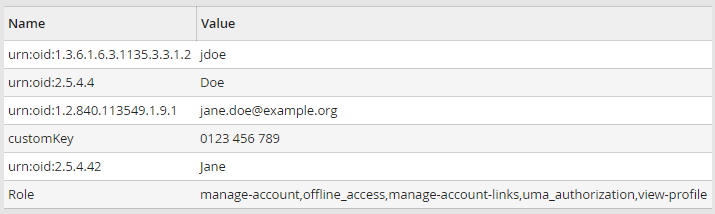
Beispiel: Vom Identity Provider bereitgestellte Attribute
Please note: The displayed attributes depend on the authenticated user. Additionally it may happen that, depending on the Provider, only those attributes are applied that are assigned to a value. Alternatively, you can identify the attribute names directly in the Provider.
This tab is only available if the setting Sign authentication requests is activated.
Here you can upload a certificate which is used to sign the communication between the Identity Provider and JobRouter.
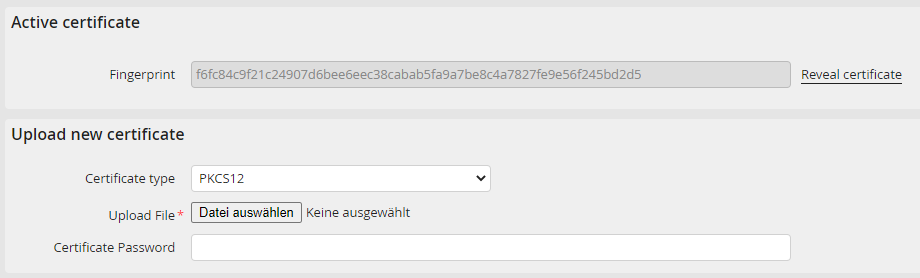
Upload certificate
Zertifikat Einstellung |
Erklärung |
|---|---|
Fingerprint |
A fingerprint that identifies the currently uploaded certificate. By clicking the reveal certificate button you can reveal the complete certificate data. |
Certificate type |
You can choose between 3 different types to upload your certificate: •PKCS12 •PEM •Raw data |
Upload File |
Here you can upload a PKCS12 or PEM certificate file. |
Certificate Password |
A PKCS12 certificate can be password protected. In this case you have to provide the password to JobRouter so the certificate can be used. |
Certificate |
For the certificate type Raw data the Certificate has to be provided here. |
Private Key |
For the certificate type Raw data the private Key has to be provided here. |
