An existing import task can be edited at any time and new import tasks can be created at any time as well. An existing task can be edited by clicking the respective row in the overview. If you want to start a new import, click on New in the action bar. In both cases the Edit JobImport dialog window will be displayed.
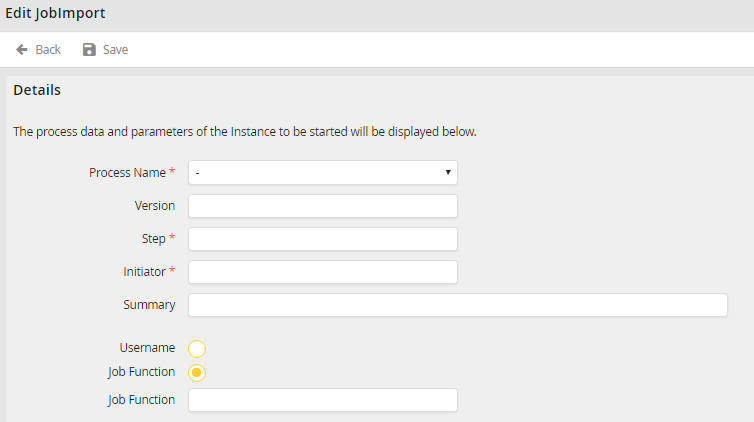
Edit a JobImport task
You may configure the following import task properties.
Property |
Definition |
|---|---|
Process name |
Select the process you want to initiate. |
Version |
•Enter the particular process version number to initiate that version. •Enter 0 or leave blank to initiate the most recent process version. |
Step |
•Required field •Specify the step number to initiate. |
Initiator |
•Required field •Provide the username that initiated the step. •This does not have to necessarily be an existing user. |
Subject |
Describe the purpose of the step |
Username |
•Select the radio button to assign the step to a specific user. •Then enter the corresponding name into the associated field. •In this case the user name saved in the step will be ignored. |
Job Function |
•Select the radio button to assign the step to a specific Job Function. •Then enter the Job Function into the associated field Job Function. •In this case the Job Function saved in the step will be ignored. |
Data for process table |
Use this field to pass data for the starting instance to write into the process table. Read more about this in the JobRouter Tech Doc manual, chapter Automatic Instance Initiation. |
Data for subtables |
This field is used to fill the subtables of the starting process. Read more about this in the JobRouter Tech Doc manual, chapter Automatic Instance Initiation. |
Table data as XML |
The data that is to be passed to the starting instance is stored as XML if the import task was created by the JobStart module. |
Simulation |
Activate this checkbox to start the instance in simulator mode, allowing it to be processed in the simulator of JobRouter without affecting the live system. Read more about process simulation in the JobRouter Workflow Designer Manual, chapter Simulator. |
If it is a new, manually created import task, or an import task without XML data, the following fields will be displayed:
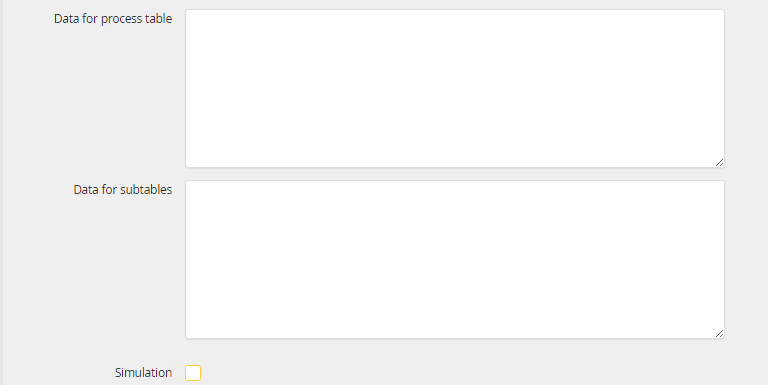
Import task instance data (SQL)
If XML data is available for the import task, the following field is displayed:
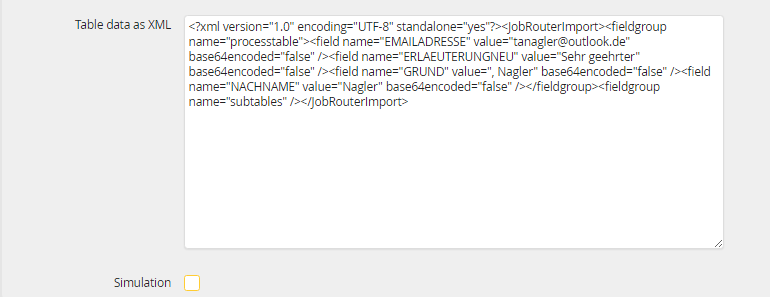
Import task instance data (XML)
Instance history of a successful import
If the import task was successfully processed and the respective instance started, the following entries will be visible.
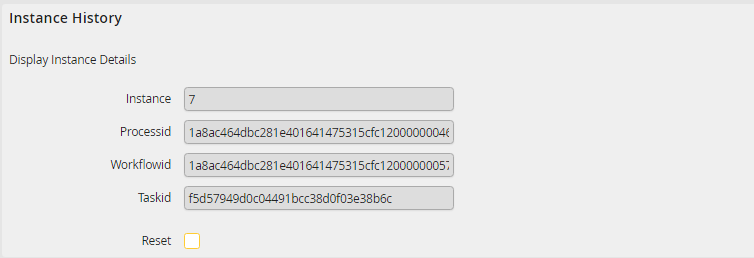
Import task instance history (successful)
Please note: The data is generated automatically and is displayed in read-only mode.
Property |
Definition |
|---|---|
Instance |
•The instance number automatically assigned by the system when starting a process. •When you start the process multiple times, the appropriate instance will automatically receive a new number. This number is unique and allows you to identify every instance of a process. |
Process ID |
The Process ID of the initiated Process |
Workflow ID |
Workflow ID of the started process step |
Reset |
•Check this box to re-initiate the task. •Both the instance number as well as both IDs are emptied. The instance will be started again. A successful completion will cause the fields to be filled again. |
Instance history for a failed import
If an error occurred while processing the import task, the following entries will be displayed.
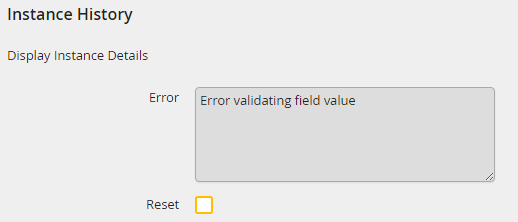
Import task instance history (failed)
Property |
Definition |
|---|---|
Error |
Error message with a description of the error that occurred during the processing. |
Reset |
•Check this box to re-initiate the task. •The error will be emptied. The instance will be started again. |
Click Save to store your changes. You will be automatically returned to the JobImport Overview.
