Use text fields to display text type database fields in your report. Click on the  icon to open a pop-up window. Here you adjust the following settings.
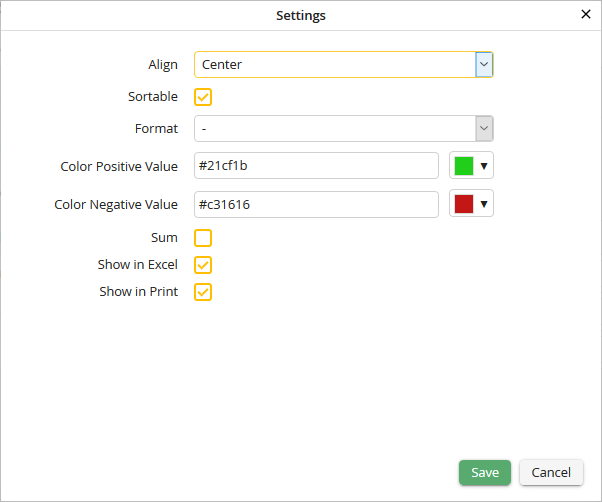
Text field - Settings
You may configure the following settings.
Text field - Settings |
Definition |
|---|---|
Align |
Determine whether the text displayed within the field appears •left, •right or •centered. |
Sortable |
Check the box to allow the user to sort the column. |
Format |
Choose "Number" to have the content interpreted as a number. You can use it to calculate a sum, for example. |
Color Positive Value |
Set a color for positive numeric values. |
Color Negative Value |
Set a color for negative numeric values. |
Sum |
Check the box to cause the values in the columns to be summed, with the total being displayed beneath the Report table. |
Show in Excel |
Specify whether the column may be included in an Excel export. |
Show in Print |
Determine whether the column should be included when the Report is printed. |
Click Save to save your settings. The pop-up window will close automatically. You will see the Edit a JobSelect Report dialog window. Click Apply in the action bar to save your settings.
