Use the monitor folders tab to monitor any number of email folders in Microsoft Outlook for new messages with JobMail Connect. If a new email is found, it will be archived with the respective configuration.
Monitor folders
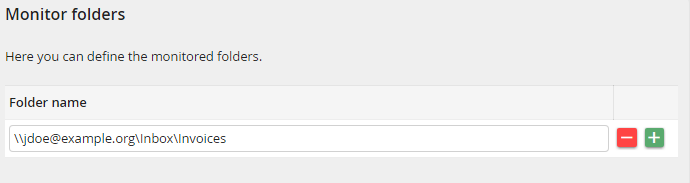
Monitor folders
Select the Outlook folder you want to monitor here.
To determine the path of the folder name in Microsoft Outlook, click the respective folder with the right mouse button and select Properties. In the General tab, copy the contents of Location to the JobRouter configuration field, add a backslash and the folder name.
For the global configuration, a number of variables can be used when defining the path:
Variable |
Explanation |
|---|---|
%USERROOT% |
Mailbox of the user (recommended). |
%USERNAME% |
User name of the user signed-in. |
%USEREMAIL% |
Email address of the user signed-in. |
Please note: The same folder must not be monitored by several configurations. Otherwise the request to archive will appear several times in Outlook.
Monitor settings

Monitoring settings
Use this option to set JobMail Connect to check all monitored folders for emails when Microsoft Outlook is started.
Please note: If the storage mask is to be displayed every time an email is archived, activating this option is only recommended if you also activated the option Show email on store. Else you will see the storage mask, but might have trouble matching it to the corresponding email.
