Use the Settings tab to adjust the email settings, cleanup settings, address-book settings and filing settings.
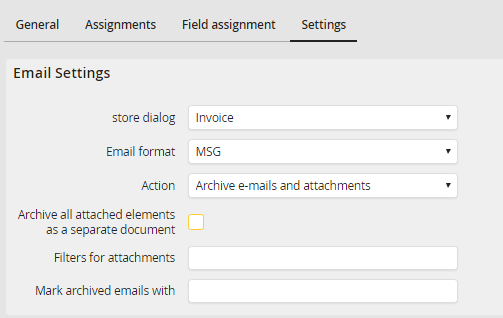
E-Mail Settings
This section contains the following settings:
Property |
Explanation |
|---|---|
Store dialog |
Enter the index dialog of the archive that is to be used as storage mask here. |
Email format |
Define the format used to archive the email message here. |
Action |
Select if you want to archive the email and/or the attachments by default. The user can (if it is displayed) select or deselect the email and individual attachments in the storage mask.
Archive email: Defines if the email message is to be archived. If a storage mask is defined, the email message will be preselected as element to be archived. If no storage mask is used, the email will be archived automatically.
Archive attachments: Defines if eventually existing attachments are archived. If a storage mask is defined, the attachments will be preselected as element to be archived. If no storage mask is used, the attachments will be archived automatically.
Archive emails and attachments: If a storage mask is defined, the email message and the attachments will be preselected as elements to be archived. If no storage mask is used, the email messages and attachments will be archived automatically. |
Archive all attached elements as a separate document |
Select if you want to archive all elements of an email separately. |
Filter for attachments |
Define filters for the type of the attachments that are to be archived here. If there is no entry in this field, all attachments can be archived in the storage mask. The user can (if it is displayed) select or deselect attachments to be archived in the storage mask. If no storage mask is defined, only the attachments that meet the filter will be archived.
Example: If, by default, only PDF and PNG files should be archived, enter the following into this field: *.pdf,*.png
Please note: If Archive email is selected as action, the filter for attachments will have no effect. |
Mark archived emails with |
The text entered here will be added as a prefix to the subject of the email. For example, if an email has the subject Product information JobMailConnect and you set the prefix to ARCHIVED, the email will receive the subject ARCHIVED Product information JobMailConnect after being archived.
Please note: By itself, JobMailConnect marks every archived email that was not deleted with the symbol |
 . Due to this, marking them with a prefix is not always necessary.
Cleanup settings
This section contains the following settings:
Property |
Explanation |
|---|---|
Actions |
Select if you want to delete the email and/or the attachments after archiving.
Delete email: Deletes the email after it was successfully archived.
Delete attachments: When archiving the email, this option deletes the attachments of the email to save space in your email account. |
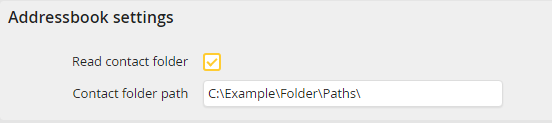
Address-book settings
This section contains the following settings:
Property |
Explanation |
|---|---|
Read contact folder |
If this option is activated, JobMailConnect will match the sender address to the corresponding contact in the address book and assigns the two email properties Company name from address book and Name from address book, if they are assigned.
Please note: The contact folder will only be read if this option is activated. This means, if you assigned the email properties Company name from address book or Name from address book in the Field assignment tab, this option has to be activated. |
Contact folder path |
The path to the contact folder you want to read. If you leave the path empty, the default contact folder of your mailbox will always be used. The path has the format \\Inbox name\Contact folder name, depending on your Outlook mailbox. You can find the path to a contact folder by right clicking it in Microsoft Outlook and opening its properties. Under location, you can find the path of the folder; you have to add a "\" and the folder name. For example, if the folder is called Contacts and has, according to the properties the location \\Inbox - Administrator, the folder path would be : \\Inbox - Administrator\Contacts
This option is only available if "Read contact folder" is activated. |
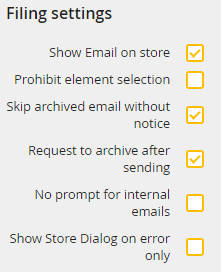
Filing settings
This section contains the following settings:
Property |
Explanation |
|---|---|
Show email on store: |
Opens the email that is currently to be archived in Microsoft Outlook. |
Prohibit element selection |
If a storage mask is used, selecting elements will be deactivated. |
Skip archived email without notice |
If this option is deactivated, the user will be asked if he wants to archive an already archived email again. If the option is activated, the user will not be asked and the email will not be archived again. |
Request to archive after sending |
After every send email you will be prompted to archive it.
Please note: As the email will be archived before it is sent, it is not recommended to use the mark email function, same with the function to remove attachments. |
No prompt for internal emails |
Select if the previous option is ignored for internal emails. This option is only available if Request to archive after sending" is activated. |
Show store dialog on error only |
Select if you want the store dialog to only appear to the user in case of an error. |
