The configuration of the JobMind module can be found in the JobRouter Configuration menu in the Module tab. You can set the basic configuration in the JobMind box.
To do so, select Configure JobMind Head.
General
You can set the configuration on the General tab.
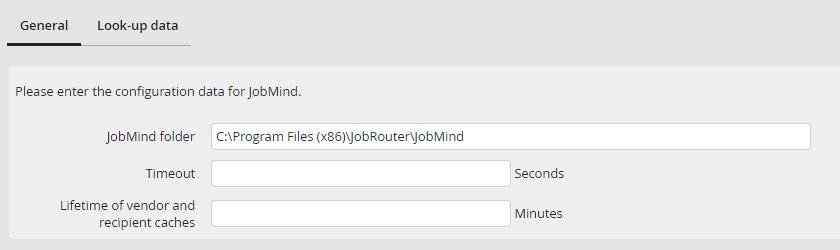
JobMind Head needs the location of the server component for the analysis. Please enter the path to the installation of JobMind Head in the JobMind Head server directory input field. Usually, this is C:\Program Files (x86)\JobRouter\JobMind\JobMind.
Optionally, you can define the maximum amount of time for each individual analysis in seconds in the Timeout field. If this value is not set, the standard value of 600 seconds will be used.
Use the input field Lifetime of vendor and recipient caches to define the time after which the data from the vendor and recipient tables is copied into the cache of the recognition software. If no value is set, the data will be transferred for every invoice analysis. We recommend, especially when accessing external data sources or a high number of invoices to set the updating time, so that not every invoice triggers an update.
JobMind Cloud Connection
Vendor and recipient data can be transferred to the JobMind Cloud. This feature is only available with an additional license.
In this section you can select the JobMind cloud system you want to work with. You can choose between Production and Test/Staging.

Please note: If you have to change the target system, you are required to newly synchronize the master data (See chapter Look-up data below).
JobMind cloud synchronization
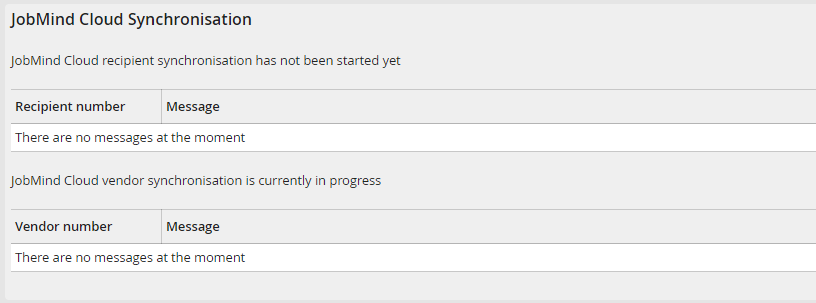
In this section you can view the current status of the synchronization.
Current Jobs
Here you find an overview of the jobs that are still with the supplier for document analysis.
The overview is only displayed if a valid JobMind cloud license is exists.
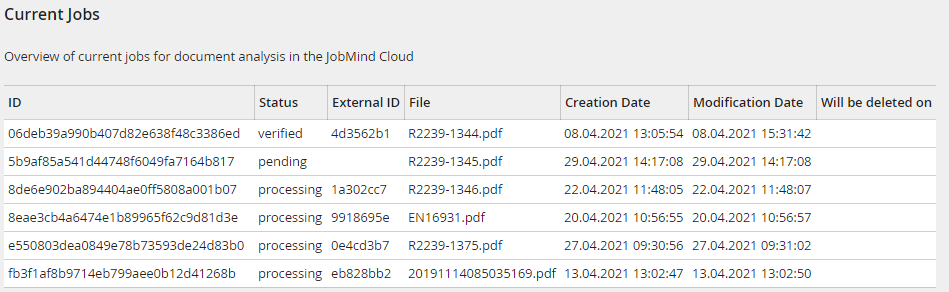
Possible status values:
•pending - job is accepted but was not forwarded to the supplier for analysis yet
•processing - job was forwarded to the supplier
•verified - the analysis was completed and is available for further processing.
Look-up data
If you want to use another data source instead of the integrated master data table, you can define a database query to an alternative data source in the Look-up data tab.
Please note: Sending Look-up data to the JobMind Cloud is allowed a maximum of 5 times within 60 minutes to ensure data processing. If you exceed this limit, the status code 429 (Too Many Requests) will be returned. In this case, you will have to wait a few minutes (Maximum 60 minutes) before you can send master data to the JobMind Cloud again.
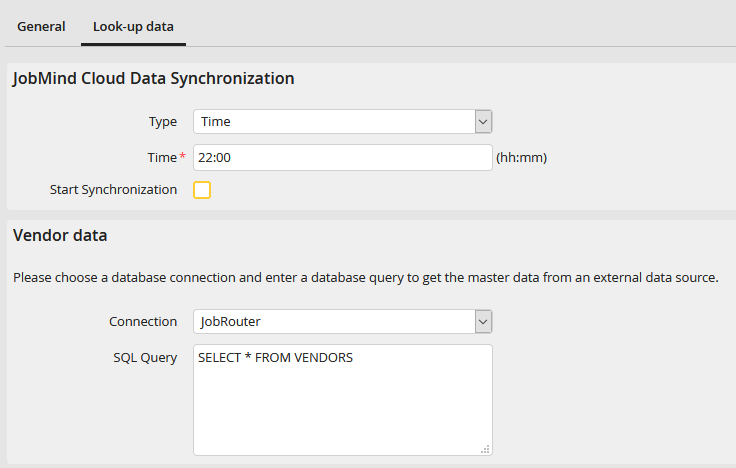
In JobMind Cloud Data Synchronization you can configure the intervals for the data reconciliation. You can make the following settings:
JobMind cloud synchronization settings |
Description |
|---|---|
Type |
Here you can determine the synchronization cycle. You can choose between Time and Time Interval. Depending on the selection you may have to define further parameters regarding the time or the time interval. |
Start synchronization |
By ticking this box, the synchronization is initiated as soon as the configuration is saved. |
You can now configure database connections in the Vendor data section. To do so, select a global JobRouter connection or the JobRouter standard connection in the Connection field.
Afterwards, enter an SQL statement that reads the vendor data from the data source in the SQL Query field. Here, it is important that the returned column names match the column names of the JRJOBMINDVENDORDATA JobRouter table. This way JobRouter can match the corresponding fields. If your table columns have different names in your query, you can easily rename them inside your SQL statement.
Example
SELECT vendorname AS VE_NAME, vendorname AS VE_VENDOR_NO ...
