Click in the Steps overview on Integrations of the selected step. An the following editing mask appears.
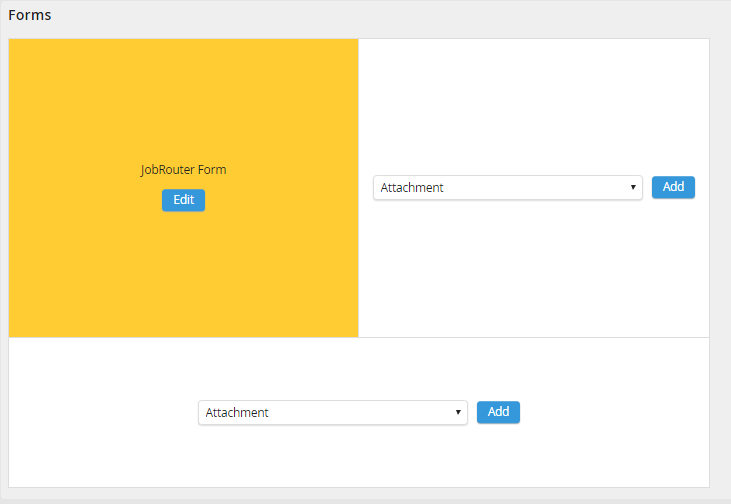
Integrations overview
Select a function from the selection menu. Click Add to integrate the selected function into the current step form. If you have already created integrations, you can open and edit them using the Edit button.
Edit integrations
In the same way you can also edit the form of the selected step.
JobRouter form
Click Edit to open the form editor of the corresponding step in the JobRouter form. Here you can edit the form settings. For further information how to edit a form See chapter Forms.
Attachment
Use the attachment integration to display an attachment in the form of the selected step. You can choose between the resources table and form. If the resource table has been selected, the attachment is loaded and displayed from the JobRouter database attachment field. If form is selected, the table field that is stored in the FILE form element is used to display the attachment. In this case, the attachment integration is also reloaded when a document is uploaded via the FILE form element.
If you have a JobViewer license, you can chose if the document should be displayed in the browser of the existing viewer or in the viewer supplied by JobRouter.
Furthermore, you can set the width of the right and left integration as well as the height of the lower integration in pixels.
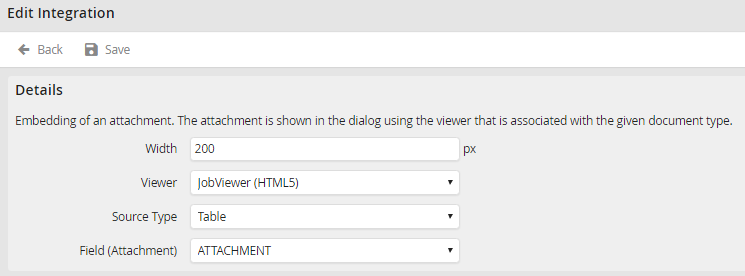
Define attachment
Click Save to save your settings and be taken back to the Edit integration editing mask.
JobArchive
Documents from a JobArchive archive can be displayed via the JobArchive integration.
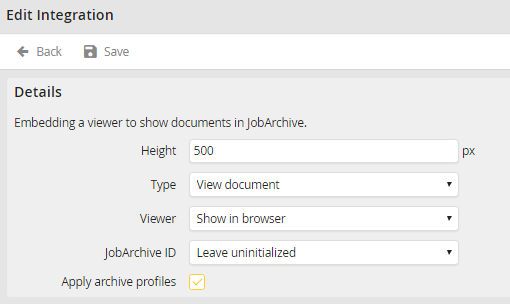
JobArchive integration - Settings
You can set the height or width (in pixels) of the integration.
You can choose between Global default viewer, Show in browser, JobViewer and JobViewer 2 to display the document.
In the JobArchive ID drop down menu, you can select the field of the process table that contains the JobArchive document ID to uniquely identify the document.
If the Apply archive profiles option is enabled, it will also be checked if the current user has access to the document via an archive profile.
Click Save to save your settings and be taken back to the Edit integration editing mask.
DWWebClientDocument
The DWWebClientDocument integration can be used to display documents to the user in the DocuWare WebClient (See DocuWare manual).
Please note: For security reasons, this type of integration is not permitted in the DocuWare Cloud.
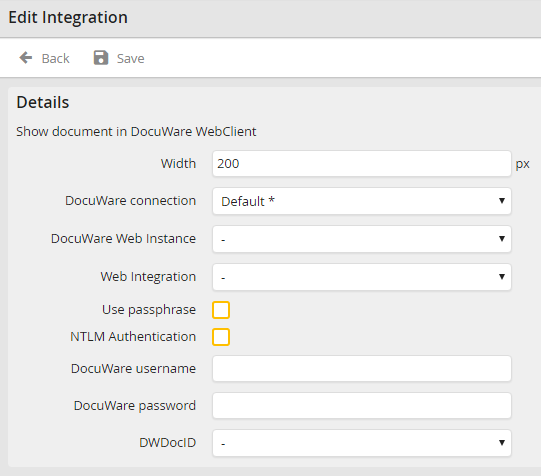
Setting up the DocuWare WebClient
You can set the height or width (in pixels) of the integration.
Select the DocuWare connection you want to use. If this is a connection to a DocuWare version lower than 6.5, you have to set the correct web instance and web integration to display the documents. If your DocuWare version supports the services platform you have to select the archive in which your document is located.
Enable the option Use passphrase to encode the URL used to open the documents with the DocuWare passphrase.
For authentication in the DocuWare WebClient, you can choose between DocuWare authentication, NTLM authentication, and anonymous authentication. For NTLM authentication, enable the NTLM authentication option. For DocuWare authentication, enter the username and password of a valid DocuWare user. Both can be configured in the DocuWare connection. If you want to use anonymous authentication in DocuWare, leave the fields for the DocuWare user blank and disable the NTLM authentication option.
In the DWDocID drop down menu, you can select the field of the process table that contains the DocuWare document ID to uniquely identify the document.
Click Save to save your settings and be taken back to the Edit integration editing mask.
IFRAME
An IFRAME allows you to display the content of external web sites to users in the step form. Select the Iframe menu. Click Add and the following input mask is displayed.
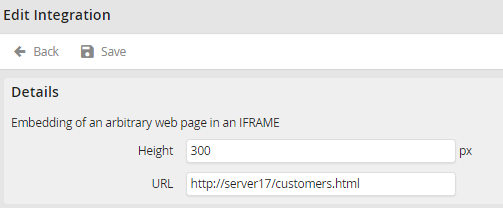
IFRAME settings
Select the width or height in pixels you want to use for the web site in the form. Use the URL to integrate the selected web site into the form.
Click Save to save your settings and be taken back to the Edit integration editing mask.
JobMind BAU
The JobMind BAU integration allows displaying documents in step forms that are available to be edited in the JobMind BAU form element. The integration displays the invoices with corrections and annotations. They cannot be edited here. Click add to see the following input mask.
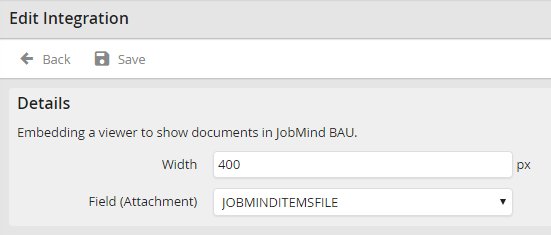
Configure JobMind BAU integration
Select the width in pixels you want to use for displaying JobMind BAU documents in the form. Use Field (Attachment) to integrate the selected invoice into the form.
Click Save to save your settings and be taken back to the Edit integration editing mask.
Object
The Object function allows you to integrate any object (e.g. a picture) into the form of the selected step.
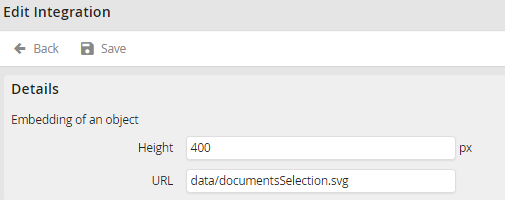
Integrate Object
Select the width or height in pixels you want to use for the object in the form. Use the URL to integrate the object in the form.
Click Save to save your settings and be taken back to the Edit integration editing mask.
OfficeOnline
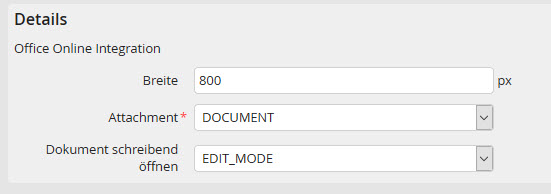
Specify the width (in pixels) with which the object is to be included in the dialog.
In the Attachment selection list, specify the process table field in which the Office document was saved. This must always be a field of the type Attachment field.
In the Open document write area you can select a process table field that determines whether the Office document should be editable or not. Editable means the value in the process table field should be 1 (true). If you do not specify anything here, the Office document will only be visible in the viewer.
Office Online Integration
