Set up a process configuration via the Designer navigation menu under Process settings | Process configurations. When you choose the appropriate menu item, you will see an overview of all previously defined process configurations.
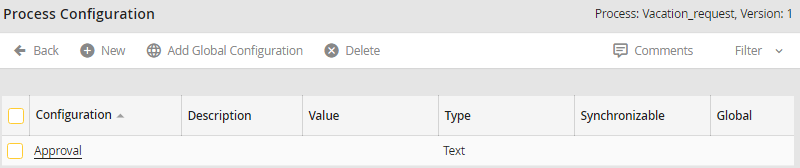
Process configuration overview
You'll see the name of the corresponding process preference under Configuration. The Description contains more information about the configuration. Value displays the assigned value. Global is checked if it is a global configuration. As mentioned earlier, you can freely use a global configuration, but you cannot change it. You set up these JobRouter global preferences under Preferences | Configuration | Admin Tools (see the JobRouter Administration Manual).
Click New in the action bar to establish a new process configuration, or click an existing configuration to be able to modify it.
Please note: You cannot change the name of the configuration after setting it up.
In both cases, you will see the Edit configuration form window.
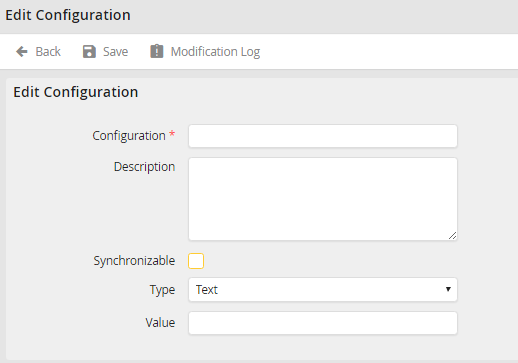
Add Configuration
You may configure the following settings.
Configuration Properties |
Description |
|---|---|
Configuration |
•Assign a name to your configuration in this required field.
Please note: Once the configuration is saved, you can no longer change the name. |
Description |
•Describe your configuration. |
Synchronizable |
•Activate the checkbox. •The configuration values will be applied when you synchronize a process between test and production system as well as when you export or import the process.
Please note: If the checkbox is not activated, the values are not transferred. |
Type |
•Choose the data type for your configuration. |
Value |
•Enter a value. •You can easily choose a static date by clicking on the calendar icon |
 .
.You can define the following constants in the Value field for the various data types (see the illustration Add configuration).
Data type |
Value |
|---|---|
Text |
Input some text for your configuration. |
Integer |
Enter a whole number (123). |
Decimal number (123.00) |
Fill in a number with a decimal point (123.00). |
Date |
Choose a date. |
Flag |
Assign a true or false value. |
Word template |
Assign a Word document as template (e. g. for the function group Fill out Word template of the JobPDF system activity). |
Click Save to store your preferences. You will be taken back to the process configuration overview.
Please note: The types (date) and (decimal number) have the same format.
Usage:
Process configurations can be used in JavaScript code, in System Activities such as Sending Email and in rules, among other things. The syntax and notation here is always [jrc_CONFIGURATIONSNAME].
Example: The process configuration Email_Salutation is used with [jrc_Email_ Salutation].
