The batch signature can also be used for PDF documents as well as the function Send PDF documents.
Set the placeholders for the signatures in the PDF document as described in the chapter See signature fields.
Please note: The placeholders will be consequently numbered. The allocation of the placeholders to the batch signature Person is performed in the form.
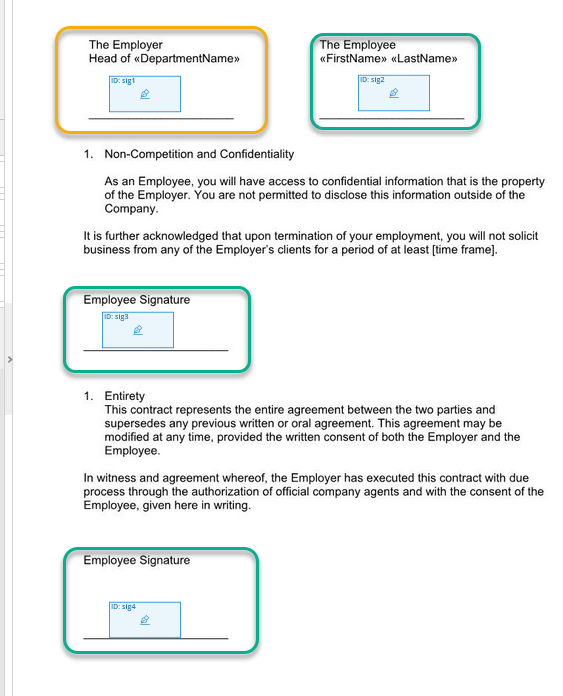
PDF signature Placeholder
The allocation of the placeholders to one person as well as the signing order is determined in the form. All signature fields with the same recipient and the same signing order are automatically combined to one batch.
In the example below you can see that the placeholders sig2, sig3 and sig4 are assigned to one person as batch signature Simple.
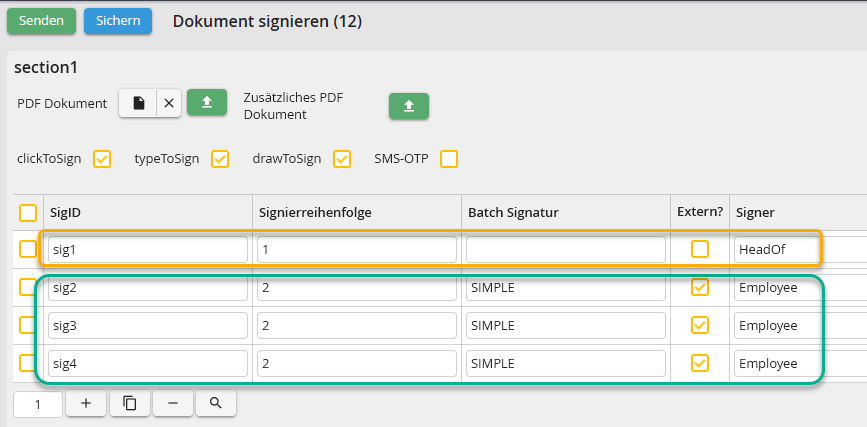
Batch signature form
In the function Send PDF document the line Batch signature is displayed in the system activities. Here you can select a subtable containing the respective batch option. Alternatively, it is also possible to determine a fixed value. If no value is indicated for a batch option, the option Simple is set by default.
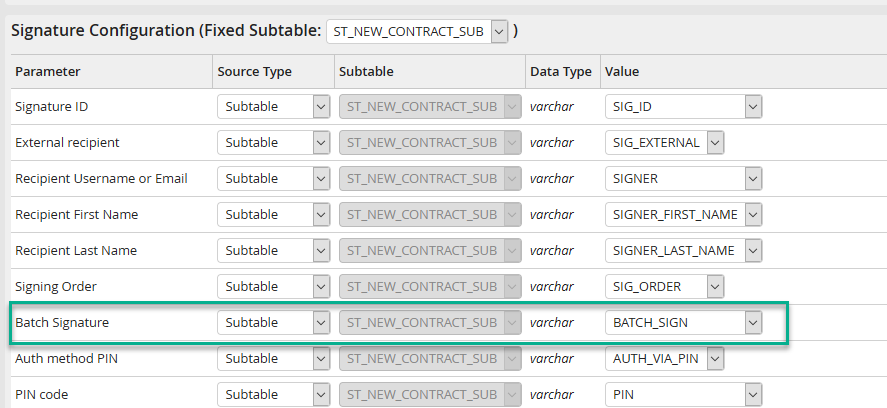
System activity batch signature
The following batch options are available:
Option |
Definition |
|---|---|
SIMPLE |
Simple batch signature |
UNSELECTED |
Batch signature (without preselection) |
PRESELECTED |
Batch signature (preselected) |
For further information on eSignAnyWhere Batch signature please click the following link: https://www.esignanywhere.net/support/user-guide-signer-guide/#Batch_Signature
