The JobRouter app in Zapier offers a trigger as event, which reacts to the storage or the uploading of new documents in an archive.
Procedure:
Select the JobRouter app in Zapier and select the option New document uploaded as trigger.
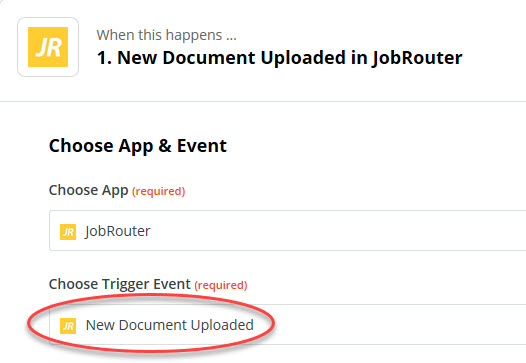
New document uploaded
As next step, select your JobRouter account.
If you do not have a Zap with an existing JobRouter registration, please proceed as described in the section above.
Click Continue and select the JobRouter archive in the Customize Newdocumentuploaded section, which you want the trigger to react to. You can either use the archive name or the Archiv GUID.
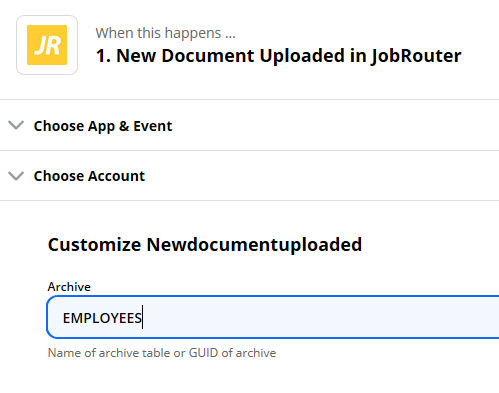
Archive selection
You can find the archive name and the GUID in JobRouter under Configuration -> Module -> Manage archive. Please select the desired archive.
JobRouter archive
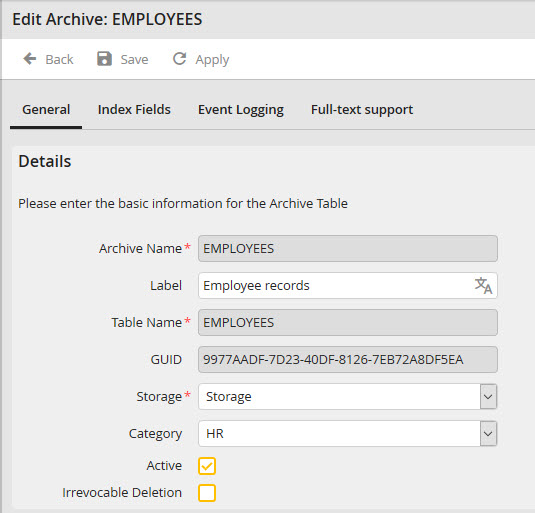
Edit JobRouter archive
After inserting the archive name, a test must be performed to check the connection to the archive.
To do so, please to to the respective archive and click Archive document.

Archivdokument ablegen
Then select the document, insert the index data, and click Save.
Now perform the test in Zapier. If it was successful, you will see the result in the Find data section.
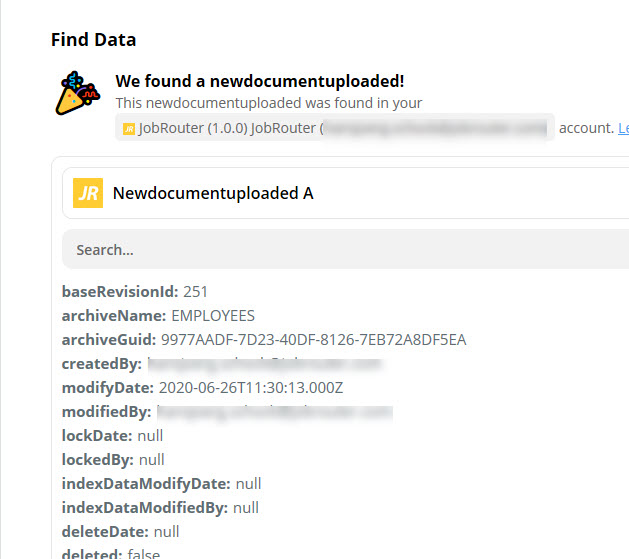
Find Data
Now you have to determine to which external application you want to transfer the archive documents. In our example, we choose Google Drive.
Choose the Zapier app Google Drive and the desired event.
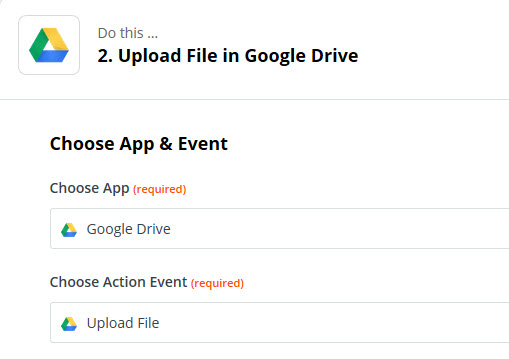
Choose app & event
In the next step you must login to your Google account and allow Zapier to access your Google account. You may receive a security message from Google informing you about the new access.
Select that Google Drive in Customize uploaded file, to which you want to upload the archive documents. The field Field is mandatory, so please select File from the data tested before.
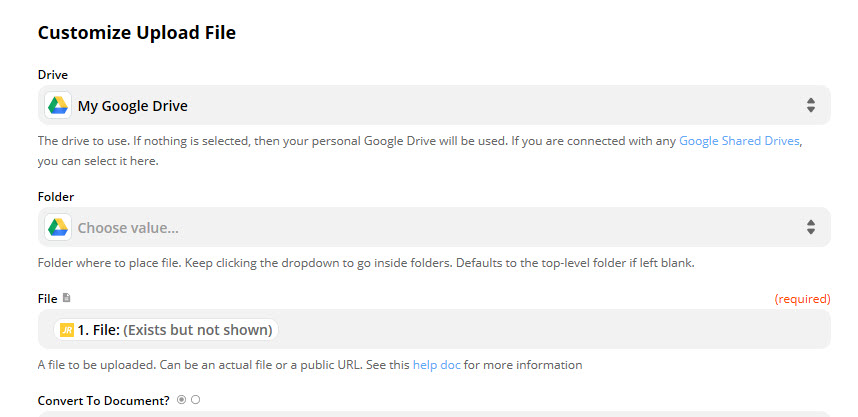
Customize uploaded file
Then please perform the test again. Switch your newly created Zap to online.
This is how you successfully create a new Zap.
Please note:
Please remember that your Zapier connection is no instant connection but a polling trigger. Zapier is polling regularly after changes. In case of a free of charge Zapier account this may take up to 15 minutes.
