As an additional event the JobRouter app offers another trigger in Zapier, reacting on new steps received in the inbox.
Procedure:
Select the JobRouter app in Zapier and select the option New inbox step as trigger.
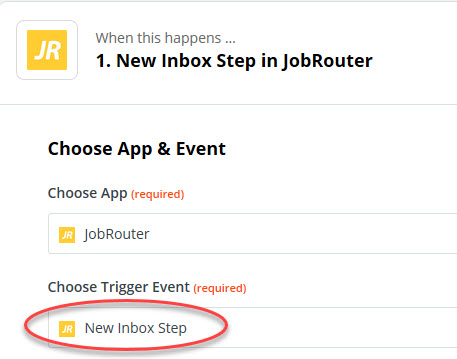
New inbox step in JobRouter
As next step, select your JobRouter account.
If you do not have a Zap with an existing JobRouter registration, please proceed as described in the section above.
Click Continue and then Test trigger to check if the trigger is working properly.
To do so, it would be preferable, if there would be an instance in your JobRouter inbox already.
You can see different instance data, such as the Job Function, the name of the step, the process ID and many others, in the Find data section.
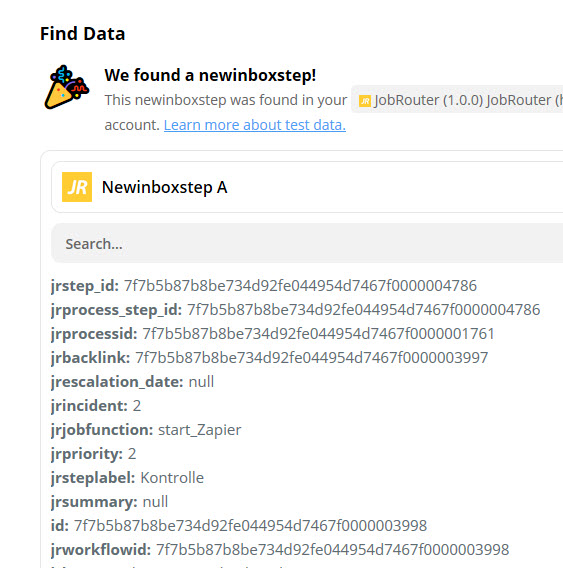
Test new Inbox Step
The next step is to choose the Zapier app, which you want to react to the incoming new step. In our example, we choose Google Mail, which should inform us about the new step via e-mail.
Select the desired app and choose Action event.
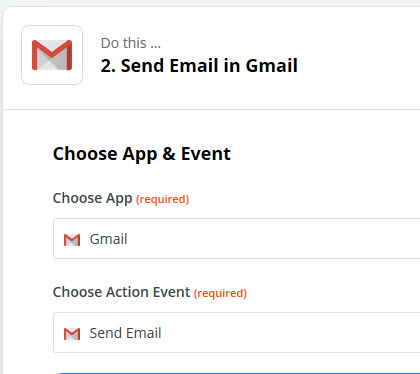
Choose app & event
In the next step you must login to your Google account and allow Zapier to access your Google account. You may receive a security message from Google informing you about the new access.
You can define all options for the e-mail in the Customize Mail section. Among others, the sender e-mail, the subject, the e-mail text, etc. can be set.
Then the test can be performed, which enables you to test the defined settings.
The Zap can be turned active after the Zap installation was finished.
Please note:
Please note that the trigger is reacting to the entrance of each inbox. This means general inboxes as well as process-related inboxes.
