Here you can find all settings regarding authentication methods and password strength as well as further authentication relevant settings in JobRouter.
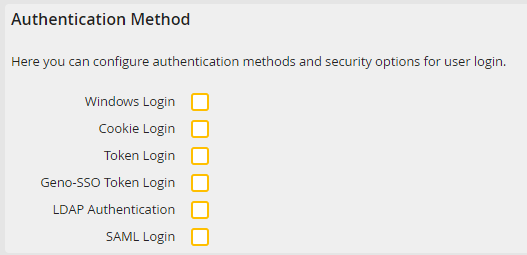
Authentication method |
Definition |
|---|---|
Windows Login |
Checking this box causes JobRouter users to be automatically logged on using their Windows login. |
Cookie Login |
Tick this checkbox to give the user the opportunity to automatically log into JobRouter. For this a cookie is set and read by JobRouter when it is called up again. |
Token Login |
Mark the checkbox to enable the user authentication via the one-way token. The login is made by calling <JobRouter URL>/?token=<token> with the user name that has been used when the token was stored. Please see further details on how to create and validate a token by means of the JobRouter Web Service in the JobRouter Web Service Manual (the methods GetToken, CreateToken and ValidateToken). The manual creation of tokens in the JobRouter database is described in Tech Doc Chapter Authentication->Token-Login. |
Geno-SSO Token Login |
Select this checkbox to activate the user authentication using Geno SSO group ticket. The certificate file needed for the ticket validation has to be placed in the config directory of JobRouter and its name has to be added to the JobRouter configuration file config.php as value of the GENOSSO_CERTIFICATE_FILE constant. |
LDAP Authentication |
Check this box to allow users synchronized with a directory service to login using their LDAP password. |
SAML Login |
Tick this checkbox to use an external login provider. After a successful login the user will be redirected back to JobRouter. |
Please note: JobRouter recommends using either the JobRouter user authentication or the Windows authentication for logging into JobRouter.
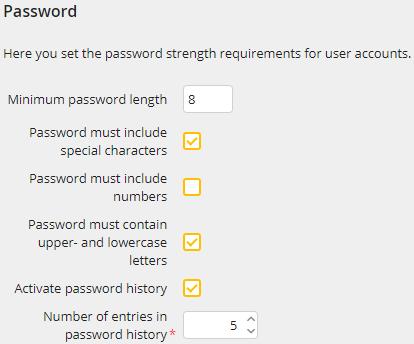
Password settings |
Definition |
|---|---|
Minimum password length |
Specify the minimum number of characters for a password. |
Password must include special characters |
Checking this box forces passwords to contain at least one special character. |
Password must include numbers |
Checking this box forces passwords to contain at least one numeral. |
The password must contain upper- and lowercase letters |
Checking this box forces passwords to contain at least one upper and one lower case letter. |
Activate password history
|
If this checkbox is activated, the checksum of the last used passwords will be saved. If the user wants to change the password now, the utilization of a password used before will be prevented. Please note: If the password is changed by anyone other than the user (e.g. by the administrator or the Web Service), the password history will neither be taken into consideration and nor will it be updated. |
Number of entries in password history |
Specify the number of used passwords, which should form the checksum. |
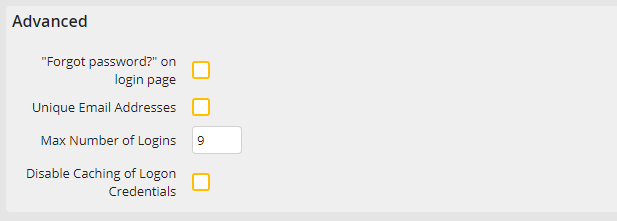
Advanced settings |
Definition |
|---|---|
Forgot password? on login page |
With checking this box user can request an e-mail to their JobRouter address to set a new password. |
Unique e-mail Addresses |
Activate this checkbox if you want to allow users to sign in with their e-mail address instead of the user name. This setting can only be saved when the e-mail addresses of all users are unique. |
Max Number of logins |
Define a maximum number of invalid login attempts. Login failures exceeding this number cause the account to be automatically locked. |
Disable caching of login credentials |
Depending on the configuration, some Internet browsers save users names and their passwords to simplify a repeated login. Tick this checkbox in order to prevent the saving of login data in the browser. |
Two-factor authentication (2FA)
For the login with user name/password or Windows Login, Token-Login and LDAP authentication the Two-factor authentication (2FA) can be activated. After the successful authentication with the selected authentication method, the user is redirected to a form for the insertion and verification of additional factors. The final login is performed after the successfully performed verification of the two factors.
The two-factor authentication is configured on user profile level (please see chapter Organization > Manage user profile > General settings).
Please note: If a user does not meet the requirements of the selected factors for his user profile, the login to JobRouter will not be possible. In this case, a corresponding message is sent to the user, when he tries to login, stating that he should contact the administrator.
Factor |
Definition |
Requirements |
|---|---|---|
E-mail with PIN |
An e-mail with a numeric PIN (6 digits) is sent to the stored e-mail address of the user. This is valid for 10 minutes. After inserting the correct PIN number the login to JobRouter is performed. |
This option is only available if JobMail is activated.
For a successful performance, a valid e-mail address of the user must exist in the system. |
