To create a new user, click New in the action bar of the user overview.
Create new users
If you want to edit an existing user, click the corresponding line in the overview. In both cases the Edit User dialog window is displayed.
Please note: For already existing users, you may only alter the settings in the General tab for JobRouter-specific users. User entries that was entered via an LDAP synchronization from an external system cannot be altered here. This does not apply to settings for Job Functions, security, status, and substitutes.
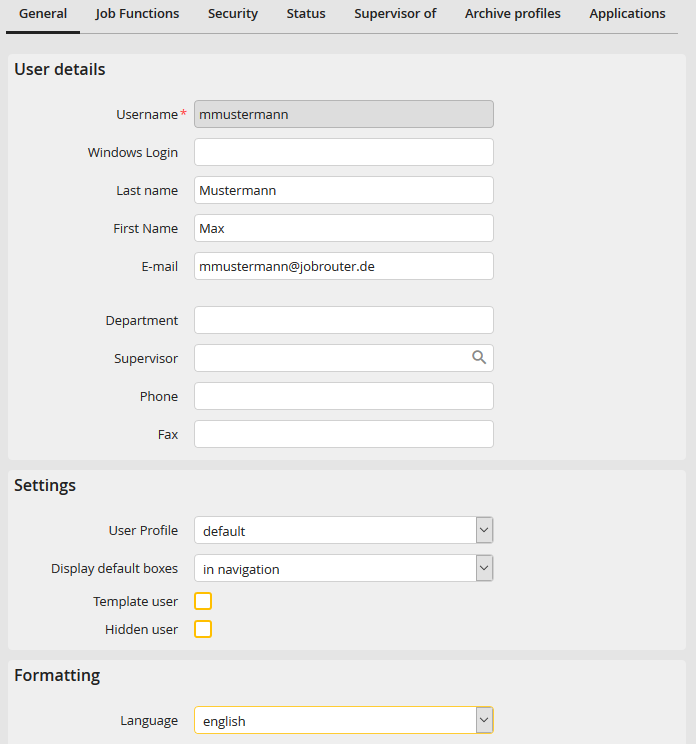
Edit user
You may configure the following settings.
Setting |
Definition |
|---|---|
User details |
|
Username |
The user's system username This is a required field. |
Single Sign-on |
The user's Windows username |
Last name |
Enter the user's real last name. |
First name |
Enter the user's real first name. |
Enter the user's e-mail address. |
|
Department |
The user's department |
Supervisor |
Add the user's supervisor. |
Telephone |
The user's telephone number |
Fax |
Where applicable, enter the user's fax number. |
Settings |
|
User Profile |
Choose a user profile. You can define your own user profiles (see chapter User Profiles). |
Template user |
The user can be used as a template for LDAP synchronization. |
Hidden user |
The user will not be visible in any lists used to select users. |
Formatting |
|
Language |
If your system is set up for multilingual support, choose the user's display language. Please note: These settings refer to the JobRouter default interface only. Processes, overviews, and archives can only be translated and offered in several languages under the licensed JobMultilingual module. |
Time zone |
Set the time zone of the user (only with the licensed module JobGlobaltime). |
Date Format |
Choose a display format for dates. |
Decimal Separator |
Choose how decimal numbers should be displayed. |
Thousands Separator |
Choose how numbers bigger than a thousand should be displayed. |
e-mail Notifications |
|
New workflow step |
If you enable this checkbox, the user will receive an e-mail notification for each new step. |
Requests / Answers |
If you enable this checkbox, the user will receive e-mail notifications for requests and answers. |
Assignments |
If you enable this checkbox, the user will receive e-mail notifications for assigned steps. |
Summarized Notification |
If you enable this checkbox, the user will receive notifications about new, open and overdue steps summarized in a single e-mail. |
Notify only, if steps have to be processed |
If you enable this checkbox, the user will receive notifications about new, open and overdue steps summarized in a single e-mail only if steps need to be processed. |
Days / Time |
Select the weekdays on which you want to receive a summarized e-mail notification. |
Admin Log |
Enable this checkbox to receive an e-mail notification in case an error in the admin monitor was detected. This option will only be displayed if the user has admin monitor rights. The JobServer service checks every 10 minutes if an error has occurred. If there is no change since the last check, no e-mail will be sent. A new e-mail notification will be sent if the log changes. |
Click Save after making your changes. The settings will be saved. You will be redirected to the user overview.
