User-defined fields allow you to configure further fields for the user management. You can set up e.g. a field, a company or your character. Those fields will be shown in the editing mask of User Management in the Admin Tools. Manage Users are displayed. Click on User Defined Fields in the General Settings to open the editing mask.
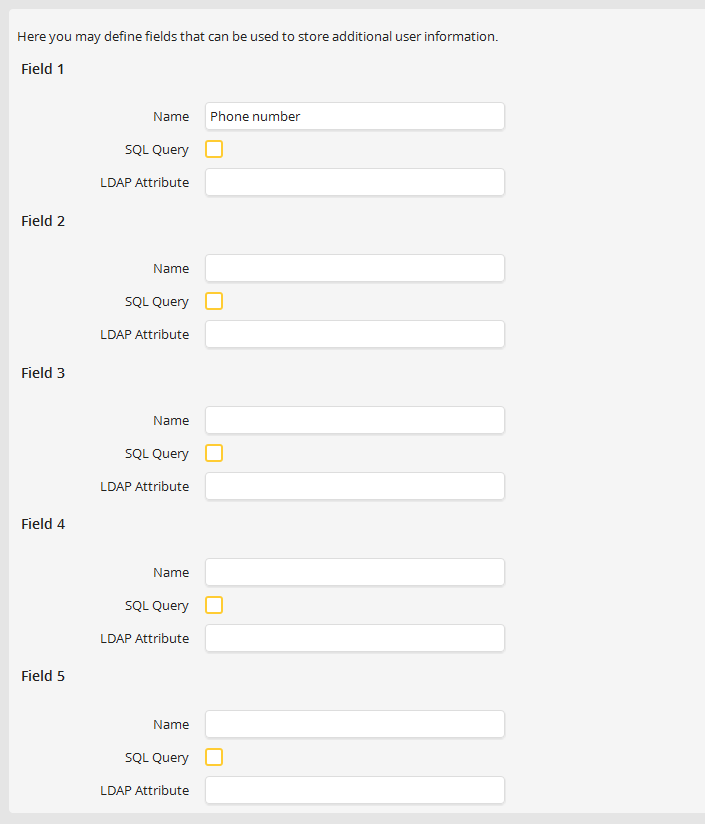
Creating user-defined fields
You may create up to five fields, Field 1 to Field 5. Enter in Name a value. These fields will be displayed in the Add/Modify User dialog window of User Administration. Learn more about user administration in chapter Manage Users. The values of the fields you create here can be employed in processes by using the corresponding system variables (see JobRouter Workflow Designer Manual, JobRouter System Variables).
You can integrate drop-down menus in the Edit User mask of the user management. Tick the SQL Query checkbox. Enter your SQL query into the SQL field. If the request returns a column, this column will be used as drop down menu. If the request returns two columns, the first one will be used as title, while the second one will be used as the actual value that will be entered into the user data.
If you want to synchronize JobRouter users using an external directory service, write the attribute name of the value you want to store in the user data in the LDAP Attribute field. If doing so, it is not possible to edit the attribute by hand anymore, if the user is synchronized with the directory service.
