Create a new e-mail account by clicking New in the action bar, or edit an existing account by clicking its name. In both cases, the Edit e-mail account dialog window is displayed.
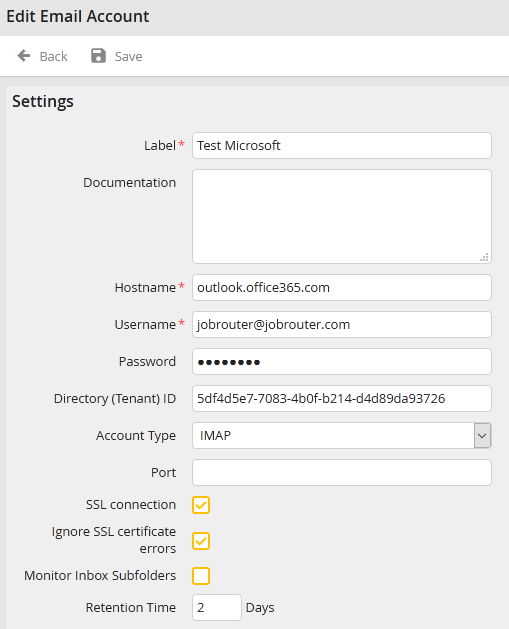
Edit e-mail account
You may configure the following settings.
E-mail account settings |
Definition |
|---|---|
Label |
Assign a name to the account. |
Documentation |
Add an optional description. |
Host name |
Enter the mail server address. |
User name |
Type in the user name that owns the e-mail account. |
Password |
Provide the password for that username. |
Directory (Tenant) ID |
Enter the Directory (Tenant) ID of your organization, if you are using Microsoft 365 with Modern authentication. Please see the chapter Microsoft Identity platform registration and configuration to learn how to do so. |
Account Type |
Select a mailbox type. You can choose from POP3 and IMAP. |
Port |
If necessary, enter a port if it differs from the standard port. |
SSL connection |
Select this checkbox if you are using a SSL encrypted connection. |
Ignore SSL certificate errors |
Enable this checkbox to ignore all SSL certificate errors. The trustworthiness of the connection will no longer be verified. |
Observe inbox subfolders |
Check this box if you want to monitor your subfolders, not your inbox. This setting is only available for IMAP mailboxes. |
Retention Time |
Please enter the retention period in days. After this time, the temporarily stored e-mails will be deleted. The temporary storage is done in the JobStart temp directory. |
Click Save to store your entries and be taken back to the e-mail account overview.
Please note: For safety reasons, all e-mails which were processed will be stored temporarily in the JobStart temp directory and only be deleted after the set retention time.
