Click Synchronize JobRouter Elements in the JobSync module to specify which elements to export to the target system.
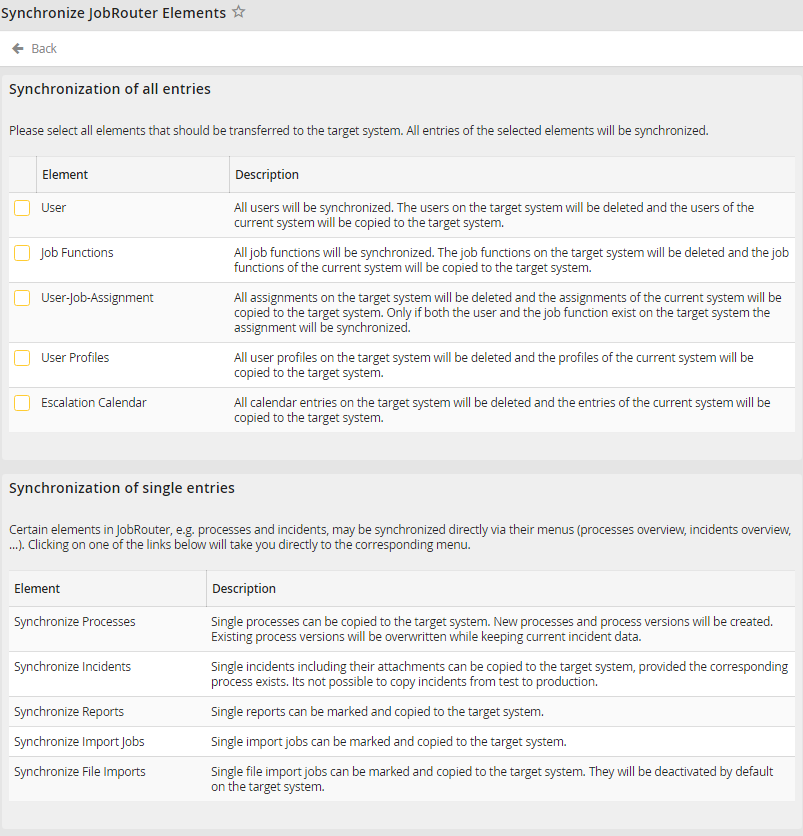
Synchronize JobRouter Elements
The dialog window contains detailed information about which data and entries will be exported and how. In the first section, specify the elements to be exported by checking the corresponding boxes. Click Transfer Test and productive system in the action bar. The selected items and all entries are transferred to the target system. If the transfer was successful, the following message appears.
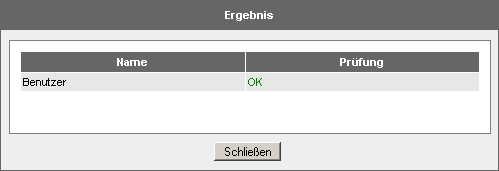
User Synchronization
Under Synchronize JobRouter elements you can select individual JobRouter elements for the synchronization. Click a link in the Element column to access the corresponding area, where you may select individual elements to synchronize. Click Synchronize Process to open an overview of existing processes. Check the boxes of the processes you wish to synchronize.
Please note: Process synchronizations are performed via the REST API. The respective connection data can be found in the Configuration menu of the module.
