Please note: You can only use this function if you have licensed the additional JobArchive module.
It is also possible to display JobArchive result columns. A symbol will be displayed in the overview that displays documents from an archive when clicked.
If you want to define a new result column of the JobArchive type, you have to select archive you want to use. Click the  symbol in the second last column:

A pop-up window appears where you can select the archive.
Furthermore, you can select if archive profiles are considered when checking if the current user is allowed to display a document based on globally defined restrictions.
Additionally, you can use the OnClick input field to add a script function that will be executed when clicking on the symbol to display documents from the archive in the overview. All JobArchive search filters defined in the settings will be passed to this function as an object. The return value false can be used to disable the default behavior, this means in this case no search will be performed in the archive and no result list displayed.
After that, the settings for this column can be changed by clicking on the  symbol in the type column.
You can limit the displayed documents in this pop-up window using a search filter. All index fields of the selected archive can be selected and linked to data base fields or fixed values.
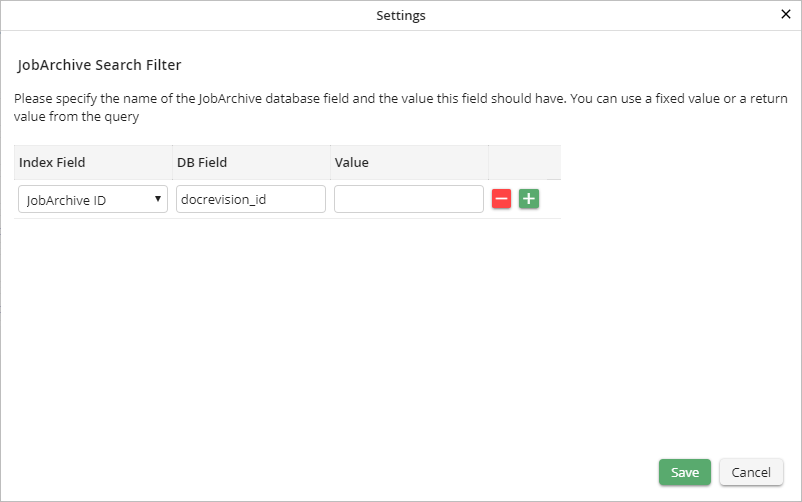
JobArchive search filter
Please note: In case you select an index field not containing the JobArchive ID, it is possible to receive multiple documents per result row in the JobSelect report. In that case, clicking the document symbol will display the first found document.
Click Save to save your settings. The pop-up window will close automatically. You will see the Edit a JobSelect Report dialog window. Click Apply in the action bar to save your settings.
