You may also activate or deactivate the substitution for a user by clicking on the corresponding line for that user. The following dialog window appears.
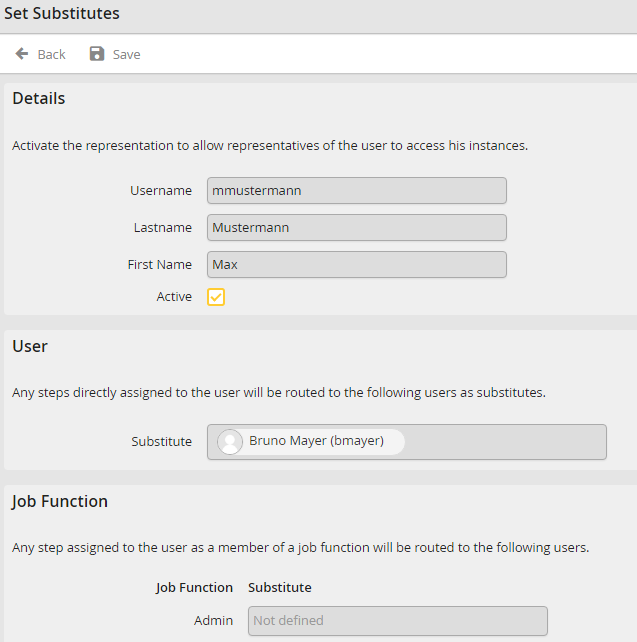
Setting Substitutes
Ticking the Active checkbox enables the substitution function for the user. Click on Save to store your settings and return to the user list. The other entries are just displayed, they cannot be edited. In the Details section, you see the username, the last name and the first name of a user. The entries can not be edited.
If no personal or role substitutes are entered, substitution cannot be activated.
User shows which substitutes a user has designated. Steps assigned to the user will instead be delivered to the designated substitutes.
The Job Function section lists the substitutes of a user for a specific Job Function. Steps assigned to a user via a Job Function will be forwarded inside the Job Function to the corresponding substitutes.
Please note: The forwarding of steps to the substitute is not multi-level. This means that if a step is forwarded to a user whose substitution is also active, the step is no longer forwarded to this user's substitute.
