The instance overview lists all active and completed instances for which the user is process owner. If you have appropriate rights as process owner you may execute various actions.
Click on Admin Tools in the Instance overview to get a list of all instances in the system.
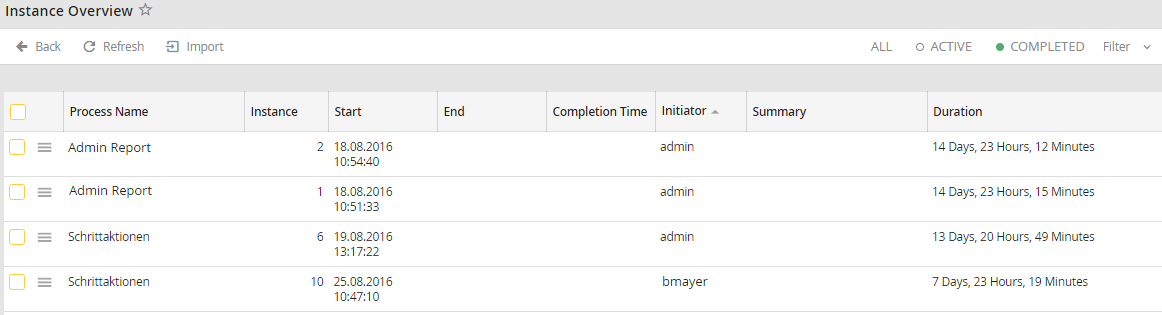
Instance overview
Each row is colored. The color displays the status of a instance. The color key can be found below the filter. More information about the meaning of the default colors in JobRouter can be found in chapter Color management in JobRouter.
The following instance properties are displayed.
Property |
Definition |
|---|---|
Context menu
|
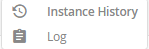
This menu displays you the following information about each instance:
•Instance history - all steps that have been already processed during the instance or that are still active are listed in a new pop-up window. For further information read chapter Instance history. •Log - the activity of the instance (e.g. Export of an instance) is displayed in a new pop-up window. |
Process name |
The name of the Process |
Instance |
If a process is restarted, the appropriate instance will automatically receive a new number. This number is unique and allows you to identify every instance of a process. |
Start |
When the instance was started. |
End |
When the instance was completed. |
Completion Time |
The deadline for the instance. |
Initiator |
The username of the person who started the instance. |
Summary |
A summary of the instance content which is defined in the process properties. |
Duration |
Period how long the processing takes. |

Import instance
You may import any number of instances in XML format into your system. Click on Import in the instance overview.
The following pop-up window appears.
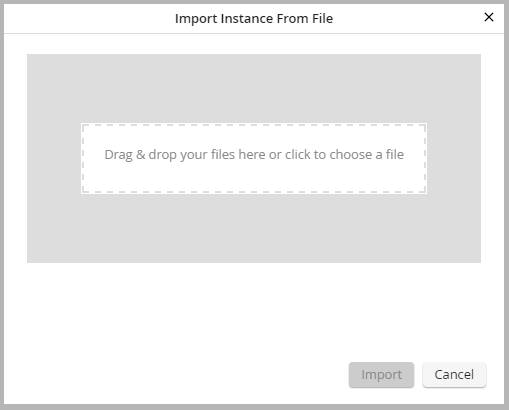
Import an instance
Select the appropriate file, then click Import to transfer the file to your system.
Instance actions
If you enable the checkbox for one or more instances, the Perform action menu appears in the action bar. There are certain actions available depending on the rights of the logged-on user and the status of the selected instance.
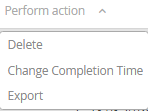
Instance actions - Drop-down list
Change completion time for an instance
If you have the corresponding rights as process owner, you can change the completion time of an instance. Enable the checkbox next to the desired instance. Click on Change completion time in the action bar in the Perform action menu. A pop-up window appears.
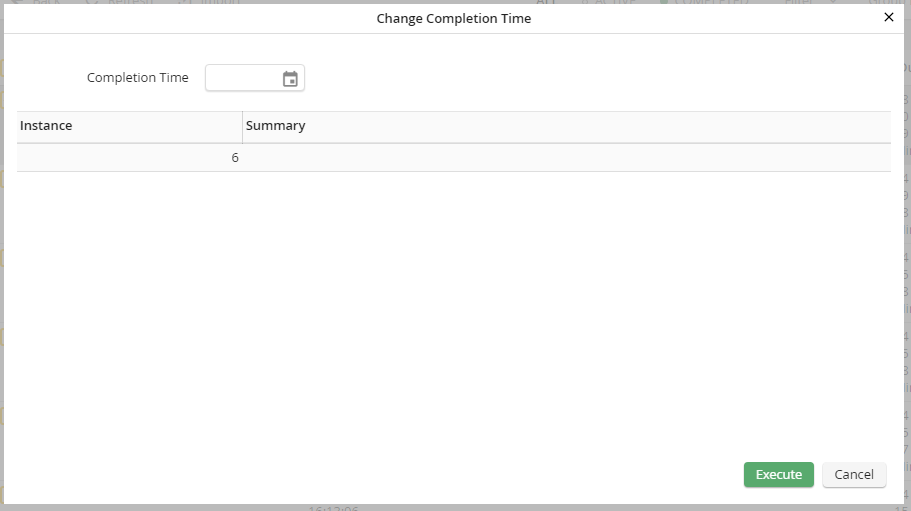
Change completion time
Enter the new completion time, then click Execute. The new date is transferred to the instance overview list at the appropriate point.
Export instance
You may export one or more instances directly from the instance overview e.g. to move an instance to another JobRouter system for error analysis and testing. Enable the checkbox of the instance(s) to be exported. Then click on Export in the action bar in the perform action menu. A pop-up window appears to execute the export
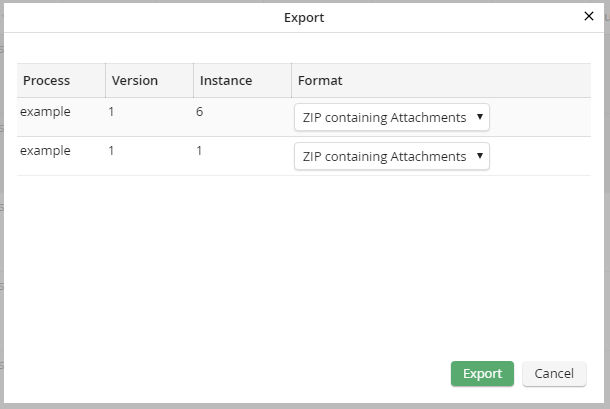
Export instance
The name and version of the selected process is displayed, as well as the number of the instance. Choose one of the following formats from the drop-down menu:
•ZIP incl. attachments - ZIP file, that includes the entire instance in XML format and the attachments.
•ZIP - The entire instance as zipped XML file
•XML - The entire instance as XML file
Click on Export. You will see an overview of the export jobs and their status (OK, failed). If the instance was exported without any errors, you can download the instance via the download instance link.
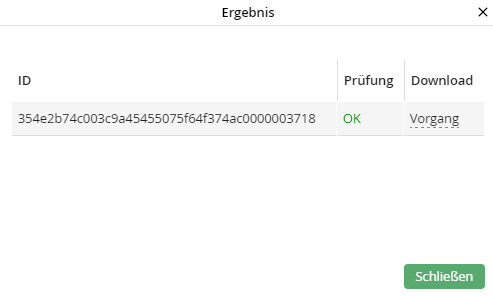
Export instance: Result
Click on Close to leave the pop-up window and return to the instance overview. The exported file can be found in the JobRouter /export directory under the displayed ID.
Exporting an instance to a test system (JobSync module).
If you use a test system in addition to your productive system, you may easily transfer one or more instances from the productive system to the test system e.g. to debug and test failed instances outside the real-time environment.
Please note: It is not possible to transfer instances from the test system to the productive system. The add-on module JobSync is required to establish such a production and test environment.
Choose an instance to export from the instance overview by enabling the checkbox next to it. Click on Export to Test System in the action bar in the Perform action menu.
In order to transfer an instance, the corresponding process must exist on the target system. JobRouter also checks whether the process ID (processid) is already present in the target system. If the ID already exists, the process is also not copied. You will receive a respective error message.
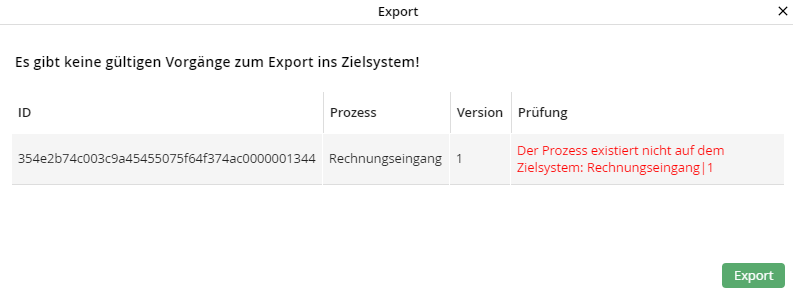
Error message: Process does not exist
If the synchronization is successful, click Export to transfer the instance and all of its data to the test system. Any instance attachments are written to the uploads directory on the target system.
Delete instance
Depending on your rights as a process owner you can delete instances. Enable the checkbox next to each instance to be deleted, then choose Delete in the action bar in the Perform action menu.
Confirm the deletion by clicking OK.
Please note: The deletion of steps is not logged in the general Action log. Only the deletion of an entire instance is recorded here. If an instance has several steps and a single step is deleted, the deleted step can be viewed in the Instance overview under Log. If an instance has only one step, or all steps are deleted at once, the instance itself is also deleted. The deleted instance is then logged in the general action log.
