Opening the content repository administration
To manage content repositories and to transfer certificates from a SAP system to JobRouter, please log into your SAP client.
The SAP content repository administration can be reached by entering the transaction number OAC0 in the user menu.
To do so, click on open command field in the SAP GUI
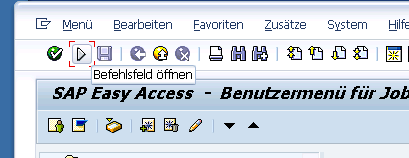
Open command field
Enter the transaction number OAC0 in the displayed field and confirm your input with the enter key.
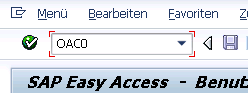
Entering the transaction number
You then reach the content repository administration. In this menu, select the respective content repository by double-clicking.
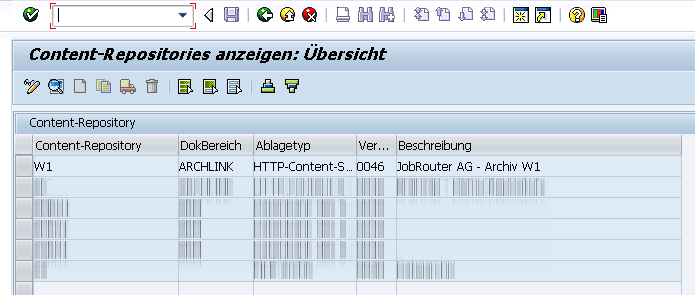
Content repository administration
Please note: When creating a content repository, keep in mind that the label of the content repository has to be unique in JobRouter.
Configuring the connection to the JobRouter content repository
The Changing content repositories: Detail menu opens. The configuration needs the following data from JobRouter:
Property |
Details |
|---|---|
HTTP-Server |
Address of the server used for JobRouter |
HTTP-Script |
The path to your JobRouter installation, is expanded by /api/jobarchivelink/sap |
Version No |
0046 |
Port number |
The port number used by JobRouter |
Configure the connection to JobRouter as seen in the following image:
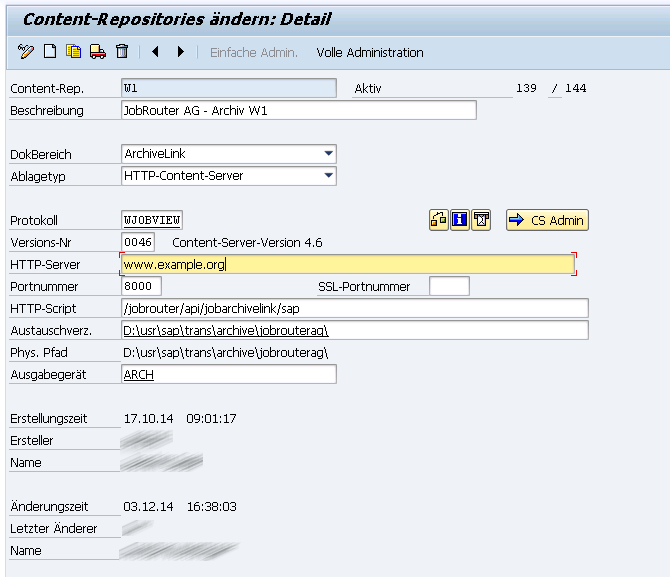
Modify content repositories - Detail
By clicking the Test connection button,  you can verify if JobRouter and the content repository can be reached via the configured URL.
The following notification is displayed by SAP after a successful connection attempt in case the certificate was not transferred yet:
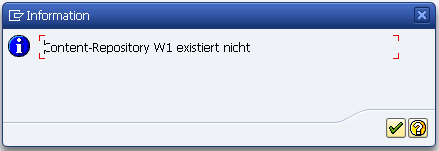
Successful connection attempt
In case of a negative result of the connection attempt, you will see the following error message. In this case, please verify your connection settings and repeat the test.
Please note: If you are using JobRouter with enabled SSO authentication, you must change the /jobrouter/api/jobarchivelink/ folder to anonymous authentication.
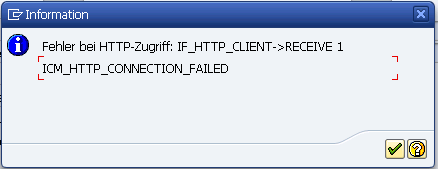
Negative result of the connection attempt
Transferring the certificate to JobRouter
The certificate is transferred by clicking the button called Send certificate  .
.
The public key necessary for the communication between the two systems is transferred from the SAP system to the JobRouter system. The repository will be created in JobRouter and can be found in Admin Tools > Configuration > Modules > JobArchive Link > Manage SAP content repositories. For already existing entries the data is updated.
Please note: By default, transferring a new or changed key will deactivate the content repository in JobRouter (can be seen in the Contrep-Satus: stopped). Thus, no documents can be archived or called up until an administrator checks the certificate and enables the repository again. To enable the content repository in JobRouter, see the section Managing Content Repositories in JobRouter.
Please note:Creating and changing a certificate via the "Send certificate" feature is logged in the action log.
Please note: The user performing the transmission must have the right to run programs by using the command line. If the user does not have this right, the SAP certification file cannot be transferred into JobRouter (error message: "unable to fork").
By clicking Status information you receive additional information on the status of the server and the content repository:
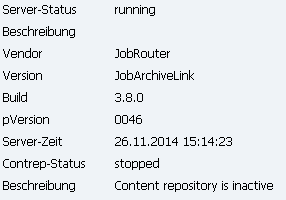
Status information
After the certificate was transferred successfully and the content repository was created in JobRouter, clicking on Test connection" will provide a success notification in the bottom bar of the SAP GUI:

Success notification in the bottom bar
