When you create a new step, the default input mask for a user step is displayed. If you select a different step type, the input mask automatically adapts as necessary.
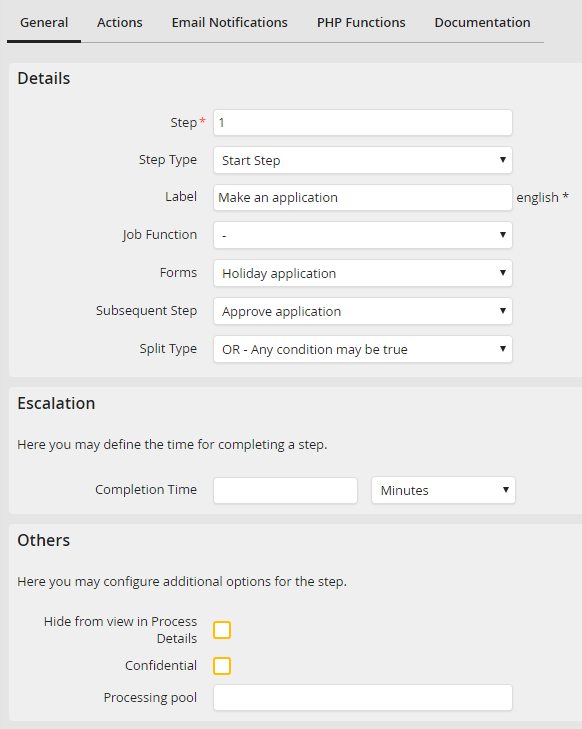
Create and edit a user step
The following settings can be made for your step:
Properties |
Description |
|---|---|
Details |
|
Step |
•Here you can determine with which number the step shall be displayed in the process flow. Assign the respective number. •When creating the first step of the process, it starts automatically with 1. •If you don't determine the step number (0), the system counts the numbers continually. •Each number can only be assigned once. •If there already exist processes in the system with this step, the number may not be changed. |
Step type |
•Select the desired type (See chapter Step types). |
Label |
•Describe the function of the step. This label is displayed as a heading in the corresponding form and also in the steps overview, instance history and inboxes. •If you have created a multilingual process, additional input fields will appear when clicking on the current field. Here you can enter the corresponding translation of the label. |
Job Function |
•In the Job Function field you can select which user role is used by each step. How to assign a Job Function to your process See chapter Job Functions. •If this Job Function is defined by a rule during the process you can leave this field blank. •You can assign the Job Function [initiator]. Then the step is directly assigned to the user who started the process. •You can also assign the Job Function [jr_supervisor]. Then the step is assigned to the supervisor of the user to whom you assigned the step. How to assign a Job Function to a user see the JobRouter Administration Manual. |
Form |
•Choose the name of the form that you want to assign to this step. •For further information about forms See chapter Forms. |
Step initialization function |
•If you have created a PHP function of the Step Initialization Function type you can use them to initialize a step. •Select the step initialization function that is executed when loading a step. |
Subsequent Step |
•Determine the step that should follow this step. For further information about subsequent steps See chapter Subsequent Steps. |
Split Type |
•If you have defined a routing or completion rule, specify how your process continues. •You can choose if several (OR) conditions have to apply or just one (XOR). |
Step group |
|
Step group |
•Only available if the process is created and imported in JobRouter version 2.3. •If you define steps in parallel, you can summarize them as a step group. •Specify a number for each step group as a key. |
Escalations |
|
Completion Time |
•Define the escalation time for a step. You can set the completion time in minutes, seconds or days. For further information about the JobTimer module See chapter Escalations (JobTimer module). |
Others |
|
Hide from view in Process Details |
•If you tick this box, the step will not show up in the instance history (see JobRouter Administration manual). |
Confidential |
•Specify whether users involved in an instance are allowed to see the form of this step. |
Processing pool |
•Enter the number of the processing pool in which this step should be processed. •Please leave this field empty if you have not configured any processing pools. •For further information about processing pools see the JobRouter Tech Doc. |
Allow External Process Initiation |
|
Allow External Process Initiation |
If you tick this box, starting an instance externally will be possible. It is not necessary for the user to sign into JobRouter to start the instance. |
URL for this step |
Take the URL from the field that is needed for the external start of the instance. Here the username should be added. For further information on the usage of the public start URL, please See chapter Allow External Process Initiation. |
