Parts of forms that are stored on the clipboard can be pasted into any form of the same process and be comfortably reused. Please note, that for every level of the form structure only the entries of the clipboard that belong on the same or on the next level below are available.
•Pasting on a form: Only pages are available
•Pasting on a page: Pages as well as sections are available.
•Pasting in a section: Sections as well as rows are available
•Pasting in a row: Rows as well as columns are available.
•Pasting in a column: Columns and elements are available.
•Pasting in an element: Only elements are available.
If you are in the design mode for the mobile view of a form, the clipboard will not be available.
To paste an entry from the clipboard into a form, click on the symbol  in the corresponding place or if you want to paste a page to the form, click on the entry Paste from clipboard in the action bar. The following popup window appears:
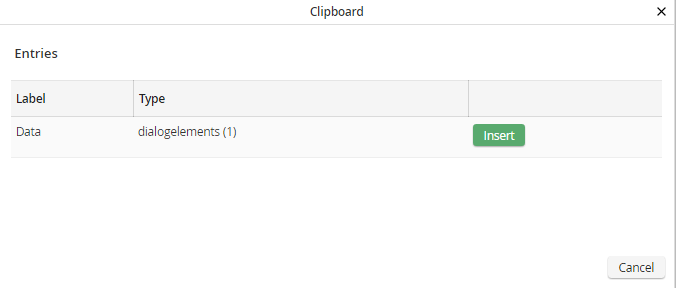
Form Designer - Paste an entry from the clipboard
The popup lists all entries of the clipboard that are available to be pasted on the selected place in the form. The saved form part will be copied to the selected location by clicking Insert behind the corresponding row. By doing so, all entries from the clipboard that are on the same level will be pasted in front of the selected place in the form. Otherwise it will be pasted into the level below.
Example: In a row, you click on the symbol .. The pop-up that opens lists all available entries of the Row or Column type of the clipboard. Selecting an entry of the Row type will insert it above our current row. Selecting an entry of the Column type will insert it at the end of the current row.
