In the Advanced section, you determine how and where your step will be redirected using Rules. Click on Advanced to see the following input mask.
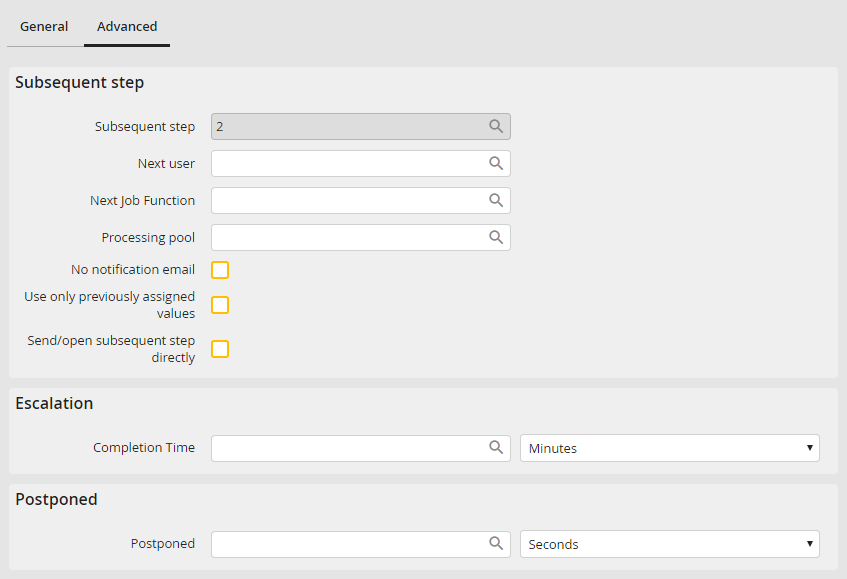
Routing Rule: Advanced Settings
You may configure the following settings:
Rule properties |
Description |
|---|---|
Subsequent step |
|
Subsequent step |
•Chose the number of the subsequent step. •The numbers do not have to be in chronological order. |
Next user |
•Select a next user. |
Next Job Function |
•Specify the next Job Function. |
Processing pool |
•Number of the processing pool (see JobRouter Tech Doc) •By default, leave this field empty |
No notification E-mail |
•By default, a user is notified when a step becomes available for him to process. •If this box is checked, the user does not receive a notification when a new step is available for processing. |
Execute in the step group. |
•If you created multiple steps in parallel, you can execute them in step groups. •This option is only available for processes imported from JobRouter version 2.3. Please use the parallelism concept in new processes (See chapter Parallelism). |
Use only previously assigned values |
•If this option is activated, the state of the process table values at the time the routing rule is executed will be passes to the subsequent steps. •Changes or assignments of values taking place in subsequent rules will be ignored when creating the subsequent step. •This option is only valid for the process table values and has no effect on the passing of subtable data. |
Escalation |
|
Completion Time |
•Specify a time limit to Process the step (step escalation). •You can express the limit in term of minutes, hours, or days. Or you can give a date. You can also express it by a percentage, which specifies the processing deadline in terms of a percentage of the total Process duration (Process Escalation). •If you want to use a date from a table field for the deadline, use the following format: (ProcessTableField:systemdatetime) or (SubTable->Field:RowId:systemdatetime). •Read more about escalations in chapter Escalations (JobTimer module). |
Postponed |
|
Postponed |
•Specify a point in time at which the step is visible to the user. Until then, the step will be invisible for the user. •You can express the limit in term of minutes, hours, or days. Or you can give a date. •If you want to use a date from a table field for the postpone date, use the following format: (ProcessTableField:systemdatetime) or (SubTable->Field:RowId:systemdatetime). |
