Once you have created a subtable view, you can go on to set up a filter for the view. A filter allows you to restrict the size of the displayed data set. To create or modify a filter, click the desired view in the subtable view overview. You will see the form window for the subtable view including the preference options for the filter.
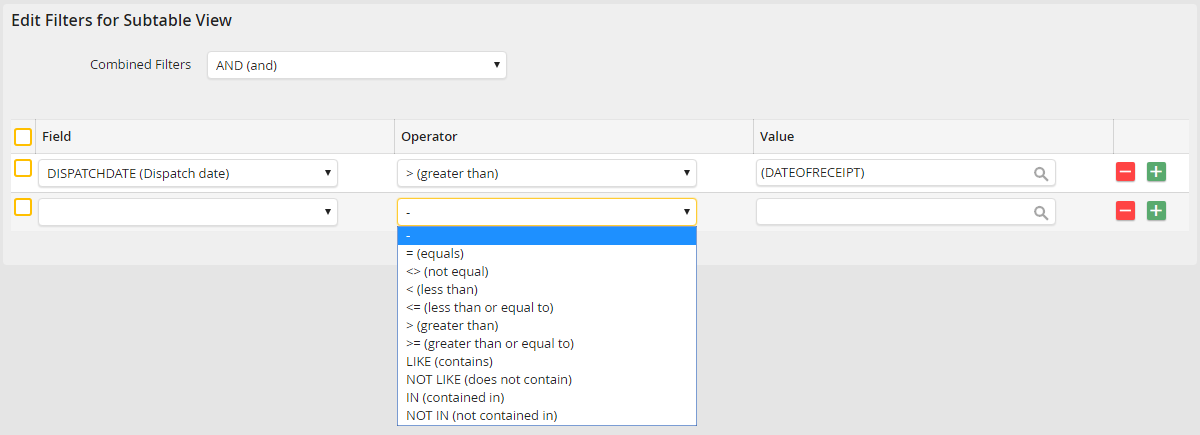
Adding and modifying filters
A filter is based on comparisons. A subtable field is compared against a specific value you provide. Under Field, use the drop-down list to select a subtable field. Then select a logicaloperator from the second drop-down list. Lastly, enter a value in the last field. Clicking the symbol  allows you to select from process and system fields. You can define any number of filters. Click the
  button to add more rows. Click the
  button to remove rows. You can combine multiple filters using AND or OR. When your filter is ready, click Save to save your entries and be taken back to the subtable view overview.
The following logical operators are available.
Logical operators |
Description |
|---|---|
= |
Is equal to |
<> |
not equal to |
< |
less than |
<= |
Is less than or equal to |
> |
Is greater than |
>= |
Is greater than or equal to |
LIKE |
Contains |
NOT LIKE |
Does not contain |
IN |
Is contained in |
NOT IN |
Is not contained in |
