Define a step escalation either in the Flowchart Editor or in the Designer in the Steps section. In the graphical designer, right click the desired step. Click Step escalation in the mouse context menu to access the Step escalation overview. This overview can also be found in Steps. In the Step overview, click Escalations for the chosen step. In either case, an overview of previously defined escalations will be displayed.
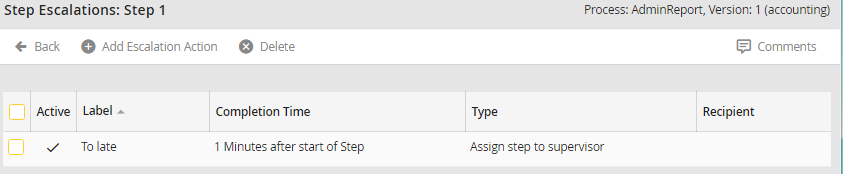
Step Escalations
If you wish to modify an existing escalation, click the corresponding name. To create a new escalation, click Add escalation action in the upper menu bar. Both ways lead to the Edit step escalation form window.
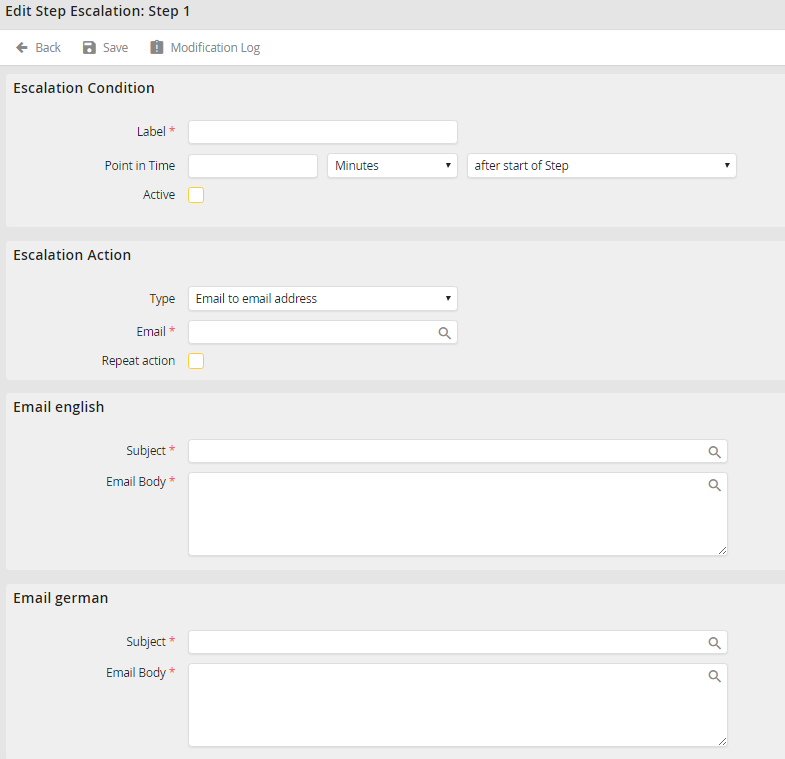
Edit Step Escalation
You can define the following properties.
Step escalation properties |
Description |
|---|---|
Label |
Enter a name for the escalation action in this required field. |
Point in time |
•Specify the point in time when the action is to start. •The point in time depends on the overall Process duration. •Specify the point in time in terms of minutes, hours, or days. •For Before deadline (See illustration Adding / Modifying an Escalation Action), you can give the point in time as a percentage. For example, you can have an e-mail sent off at the halfway point in the Process (50%). |
Active |
Check the box to enable the action. |
Type •e-mail notification to e-mail address •e-mail notification to user •e-mail notification to Job Function •e-mail to assigned employee •e-mail to process owner •Allocating a step to a Job Function •Assigning a step to a user •Allocating an instance to a different step •e-mail notification to a supervisor •Allocating a step to a supervisor |
Choose an action to be executed. Clicking the magnifier symbol allows you to use process and system fields. •Enter an e-mail address to which the e-mail should be sent. •Enter a user to which the e-mail should be sent. •Enter a Job Function to whose members the e-mail should be sent. •Send an e-mail to the currently assigned user or the members of the currently assigned Job Function. •The e-mail is sent to all process owners for information. •Choose the Job Function, to whose members the step should be allocated. •Enter the user who should receive the step. •Choose a new step and user or Job Function to assign the instance to. •Sends an e-mail to the supervisor of the currently assigned user or to the supervisor of the member of the currently assigned Job Function. •Assigns the step to the supervisor of the currently assigned user or the supervisor of the first user of the currently assigned Job Function. |
E-mail address / User / Job Function
|
•The menu changes dynamically. You can choose an e-mail address, a user, or even a Job Function appropriate to the chosen action under type. |
Repeating an action |
Tick the control box to repeat the action within a defined time interval. |
Time interval |
If repeat action is activated, the repetition interval can be defined in minutes, hours and days. |
Summary |
•Provide a subject for the message. •If the Process has multilingual capability, you can provide the subject in other languages. •The user sees the subject in the language assigned to him. •Clicking the symbol |
E-mail body |
•Compose the message. •You can enter the message text in multiple languages, if applicable, using process and system fields as well as process messages (see Subject). |
 allows accessing the process and system fields as well as the process messages.
Click Save to save your entries and be taken back to the Step Escalation overview.
