Set up the processing deadline in Step Properties. For more information on creating and modifying steps See chapter Steps. Click Steps in the Designer navigation menu. You see an overview of all previously defined steps. Select an existing step or click New step in the upper menu bar. The Add/Modify step form window appears, containing the section Escalation. When you have finished your entries, click Save to save them.
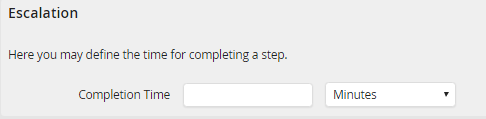
Step properties |
Description |
|---|---|
Completion Time |
Enter a time in minutes, hours, or days, within which the step is to be processed. |
For the processes that have been imported from JobRouter version 2.3, the Escalation section looks the following:
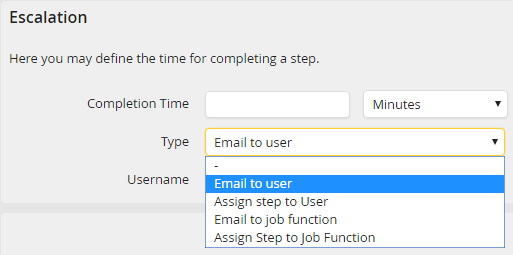
Escalation Step
You can specify the following properties.
Step properties |
Description |
|---|---|
Completion Time |
Enter a time in minutes, hours, or days, within which the step is to be processed. |
Type |
Choose an action to be executed. |
Username / Job Function
|
The menu changes dynamically. You can choose an a user or a Job Function appropriate to the chosen action under type. |
