Click Workflow | Steps in the Designer navigation menu to see an overview of your previously defined steps.
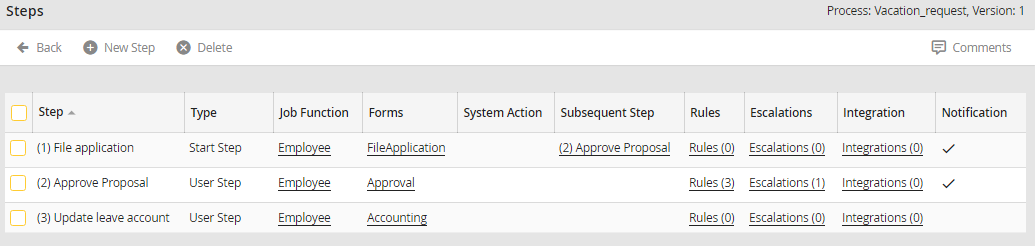
Steps overview
The following properties are displayed.
Step Property |
Description |
|---|---|
Step |
The steps column shows the execution order of the steps along with a label for each step. Click on a step to open the form window of that step. |
Type |
The type column shows whether the step is a user step, a start step, a system step, a decision step, parallelization start step, or a parallelization end step (See chapter Step type). |
Job Function |
The Job Function displays which Job Function is assigned to the process. Click on Job Function name to see all members of this Job Function. How to assign Job Functions to a process See chapter Job Functions. |
Form |
You can see the form of a step. Click on the name to get to the editing mask of the corresponding form. Further information about forms See chapter Forms. |
System action |
Here you can see the system actions you have created (e.g. DocuWare). Clicking takes you to the corresponding modify mode (See chapter System actions). |
Subsequent step |
This column shows the step specified as the next consecutive step (See chapter Subsequent step). |
Rules |
The number in brackets shows how many rules you have defined for the step. Clicking takes you to the rules overview of this step. How to create rules, See chapter Rules. |
Escalations |
The number in brackets shows how many escalations are defined for this step. Click on a escalation to get to the overview of the step. For further information about the JobTimer add-on module See chapter Escalations (JobTimer modul). |
Integrations |
Use the Integrations to embed certain functions in a step. An invoice from DocuWare e.g. is always displayed at a defined point in the form. The number in brackets shows how many integrations are embedded in this step. Clicking takes you to the Manage Integrations form of the selected step (See chapter Integrations). |
Notification |
If an e-mail notification is enabled, it will be displayed. |
