To create a step of the System Action type, select System step in the picklist Step Type in the Edit step mask. The following input mask is displayed.
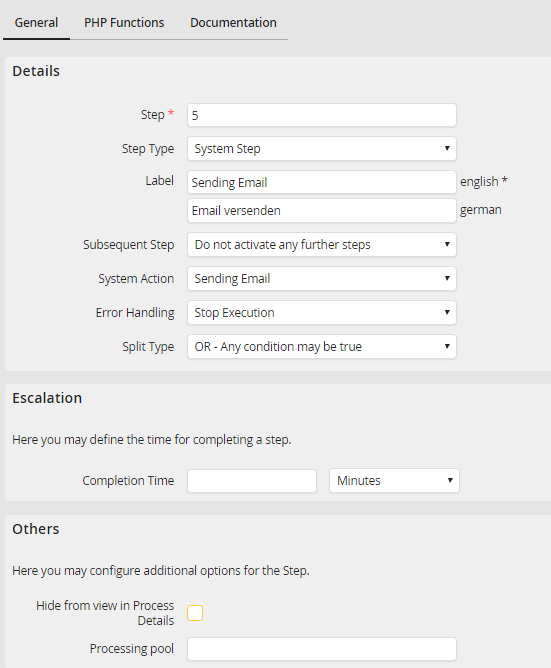
Create and edit a system action
In addition to the the generally available properties the following properties can be modified for your step. The description of the properties can be found in chapter Create and edit a user step.
Properties |
Description |
|---|---|
Details |
|
System step |
•Choose the system action to be executed in this step. |
Error handling |
•Select what should be done if a system step runs into error at execution time. •Select Stop execution if you want to leave the step in the error state. •Select Continue execution to continue sending the step. Then you can assign the error messages to a process table field and evaluate them in a rule. |
Click Save after you have finished all your settings and be taken back to the steps overview.
If you wish to modify the functions of a system action, go to the steps overview, then click on the name of the system action in the System action column. The editing mask of the system action opens. For further information about system action See chapter System Actions.
