An installed JobSync add-on module allows you to transfer one or more file import tasks from a productive system to a test system and vice versa. Doing so will allow the tasks to be tested and edited without affecting the productive system. For example, if an error occurs during monitoring, transfer the task concerned to a test system, where you may examine the file import task. Once the error is corrected, transfer the task back to the productive system.
A successful synchronization requires the target system have the same process version to initiate as does the source system. When this is not the case, you will receive an error message.
To synchronize one or more file import tasks, go to Manage File Imports and click Export to Test System or Export to Productive System in the action bar, depending on the mode you are currently in. After clicking on the respective button, the following pop-up window appears.

Export to Test/Productive System button
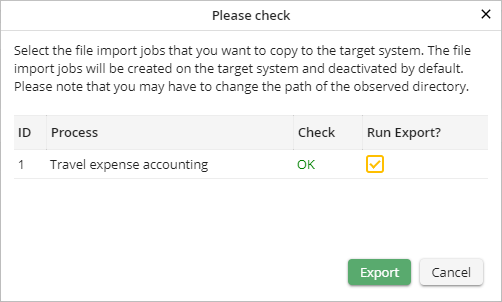
Exporting a monitoring task to the test system
The first two columns show ID and the imported Process. The Check column shows the result of the target system check. If the check is successful, you can export the tasks. Select the checkboxes in the Export column. Click on the Export button to transfer the tasks. The exported file import tasks will be created on the target system and deactivated. To activate the task on the target system, select the Active checkbox (see chapter Create and edit a file import task).
Please note: You might have to modify the defined path of the monitoring directory in the target system.
