Create a new file import task by clicking New in the action bar. If you want to edit an already existing task, click on the respective name. In both cases the Edit File Import dialog window appears.
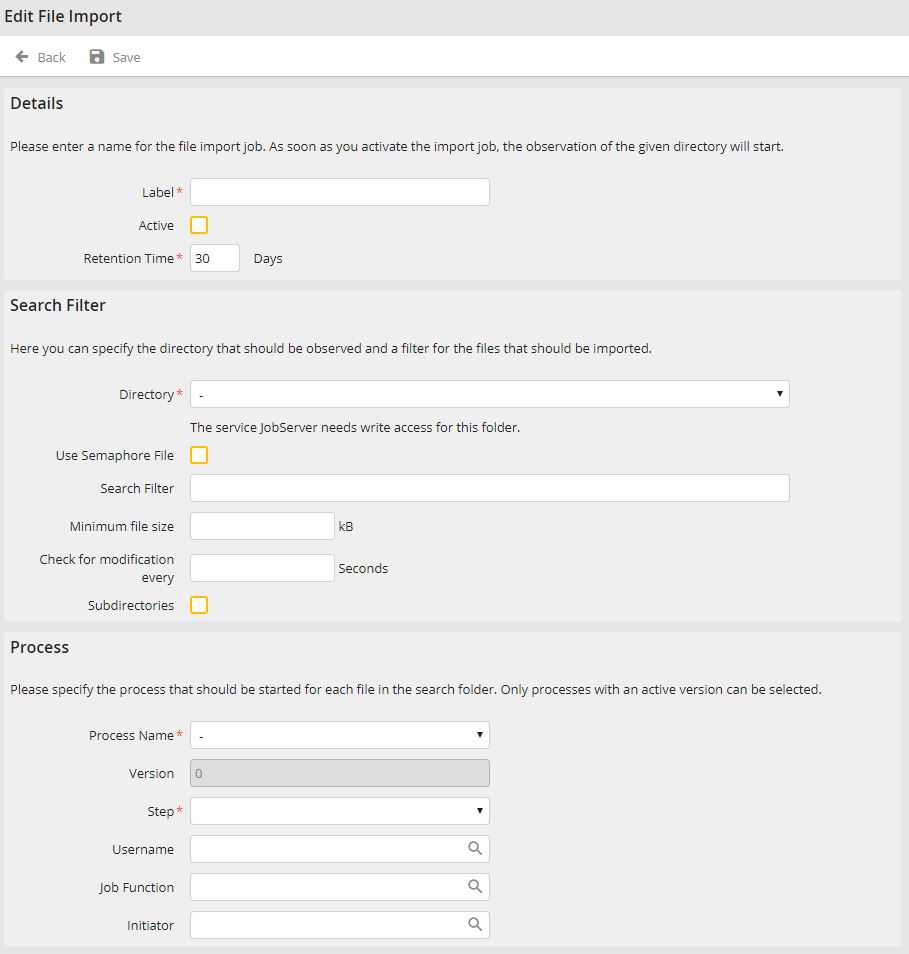
Edit a file import task
You may configure the following settings:
General settings |
Definition |
|---|---|
Details |
|
Label |
Assign a name to the task. |
Active |
Check the box to monitor the corresponding directory. Please note: Monitoring can only occur if you have defined a temporary directory for JobStart (see chapter JobStart Configuration). |
Retention time |
Number of days after which the temporary files of the import task are deleted. This period of time starts as soon as the import task is finished. Thereby, faulty tasks are not corrected. |
Search filter |
|
Directory |
Enter the name of the directory to be monitored. If a root directory is entered in the JobStart Configuration you can choose a subdirectory from a picklist.
Please note: The JobServer service requires write-permissions for this directory. |
Use semaphore file |
If the checkbox is selected, a task will only be started if a semaphore file is in the directory. |
Semaphore file |
The name of the semaphore file (in relation to the to be imported file) can be defined here. The following three place holders are available: |
Search filter |
•Define for which files a task should be initiated. You can use * and ? as place holders, whereas a star stand for multiple and a question mark for one optional character. •Separate multiple entries with a semicolon. •With no filter defined, a task will be initiated for every file created in the directory. |
Minimum file size |
Define a minimum size above which a file will be imported. |
Check for modification every n seconds |
The interval between file size checks can be set here. |
Subdirectory |
Check the box to have the task also monitor subdirectories of the given directory. |
Process |
|
Process name |
•Choose the process to be initiated. •The process must have an active version. |
Version |
The current version will be automatically set. |
Step |
Choose a process step to be initiated. |
Username |
•Optionally specify a Job Function for which the first process step is to be activated. •Enter the Job Function name directly, or choose from a list by selecting the symbol |
Job Function |
•Optionally choose a Job Function for which the first process step is to be activated. •Enter the Job Function name directly, or choose from a list by clicking the symbol |
Initiator |
Choose a user to be appointed Initiator for the chosen step. |
 .
.Click Save to save your settings. You will be redirected to the task overview automatically.
